Will using the data mode affect the performance of my Tiger Cloud service?
There are a few factors to consider:
- What instance size is your service?
- How many users are running queries?
- How computationally intensive are the queries?
If you have a small number of users running performant SQL queries against a service with sufficient resources, then there should be no degradation to performance. However, if you have a large number of users running queries, or if the queries are computationally expensive, best practice is to create a [read replica][read-replica] and send analytical queries there.
If you'd like to prevent write operations such as insert or update, instead of using the tsdbadmin user, create a read-only user for your service and use that in the data mode.
SQL Assistant in [Tiger Cloud Console][portal-data-mode] is a chat-like interface that harnesses the power of AI to help you write, fix, and organize SQL faster and more accurately. Ask SQL Assistant to change existing queries, write new ones from scratch, debug error messages, optimize for query performance, add comments, improve readability—and really, get answers to any questions you can think of.
This feature is not available under the Free pricing plan.
<!-- <iframe width="1120" height="630" style="max-width:100%" src="https://www.youtube.com/embed/3Droej_E0cQ?si=C4RoL_PFpr8E5QtC" title="YouTube video player" frameborder="0" allow="accelerometer; autoplay; clipboard-write; encrypted-media; gyroscope; picture-in-picture; web-share" referrerpolicy="strict-origin-when-cross-origin" allowfullscreen> SQL Assistant offers a range of features to improve your SQL workflow, including: - **Real-time help**: SQL Assistant provides in-context help for writing and understanding SQL. Use it to: - **Understand functions**: need to know how functions like `LAG()` or `ROW_NUMBER()` work? SQL Assistant explains it with examples. - **Interpret complex queries**: SQL Assistant breaks down dense queries, giving you a clear view of each part. - **Error resolution**: SQL Assistant diagnoses errors as they happen, you can resolve issues without leaving your editor. Features include: - **Error debugging**: if your query fails, SQL Assistant identifies the issue and suggests a fix. - **Performance tuning**: for slow queries, SQL Assistant provides optimization suggestions to improve performance immediately. - **Query organization**: to keep your query library organized, and help your team understand the purpose of each query, SQL Assistant automatically adds titles and summaries to your queries. - **Agent mode**: to get results with minimal involvement from you, SQL Assistant autopilots through complex tasks and troubleshoots its own problems. No need to go step by step, analyze errors, and try out solutions. Simply turn on the agent mode in the LLM picker and watch SQL Assistant do all the work for you. Recommended for use when your database connection is configured with read-only credentials. SQL Assistant supports a large number of LLMs, including: - GPT-4o mini - GPT-4o - GPT-4.1 nano - GPT-4.1 mini - GPT-4.1 - o4-mini (low) - o4-mini - o4-mini (high) - o3 (low) - o3 - o3 (high) - Claude 3.5 Haiku - Claud 3.7 Sonnet - Claud 3.7 Sonnet (extended thinking) - Llama 3.3 70B Versatile - Llama 3.3 70B Instruct - Llama 3.1 405B Instruct - Llama 4 Scout - Llama 4 Maverick - DeepSeek R1 Distill - Llama 3.3. 70B - DeepSeek R1 - Gemini 2.0 Flash - Sonnet 4 - Sonnet 4 (extended thinking) - Opus 4 - Opus 4 (extended thinking) Choose the LLM based on the particular task at hand. For simpler tasks, try the smaller and faster models like Gemini Flash, Haiku, or o4-mini. For more complex tasks, try the larger reasoning models like Claude Sonnet, Gemini Pro, or o3. We provide a description of each model to help you decide. ### Limitations to keep in mind For best results with SQL Assistant: * **Schema awareness**: SQL Assistant references schema data but may need extra context in complex environments. Specify tables, columns, or joins as needed. * **Business logic**: SQL Assistant does not inherently know specific business terms such as active user. Define these terms clearly to improve results. ### Security, privacy, and data usage Security and privacy is prioritized in Tiger Cloud Console. In [data mode][portal-data-mode], project members manage SQL Assistant settings under [`User name` > `Settings` > `SQL Assistant`][sql-editor-settings].  SQL Assistant settings are: * **Opt-in features**: all AI features are off by default. Only [members][project-members] of your Tiger Cloud project can enable them. * **Data protection**: your data remains private as SQL Assistant operates with strict security protocols. To provide AI support, Tiger Cloud Console may share your currently open SQL document, some basic metadata about your database, and portions of your database schema. By default, Tiger Cloud Console **does not include** any data from query results, but you can opt in to include this context to improve the results. * **Sample data**: to give the LLM more context so you have better SQL suggestions, enable sample data sharing in the SQL Assistant preferences. * **Telemetry**: to improve SQL Assistant, Tiger Data collects telemetry and usage data, including prompts, responses, and query metadata. ## Ops mode SQL editor SQL editor is an integrated secure UI that you use to run queries and see the results for a Tiger Cloud service. 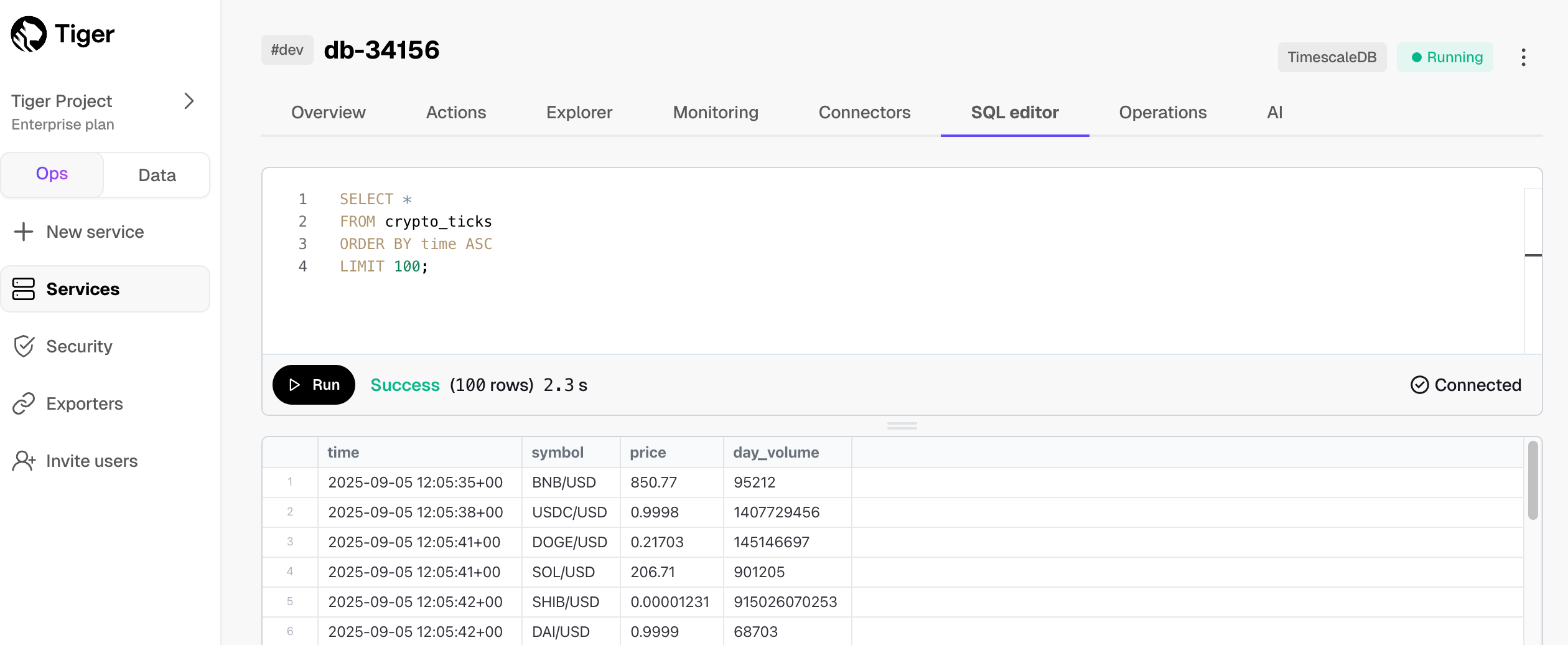 To enable or disable SQL editor in your service, click `Operations` > `Service management`, then update the setting for SQL editor. 1. **Open SQL editor from Tiger Cloud Console** In the [ops mode][portal-ops-mode] in Tiger Cloud Console, select a service, then click `SQL editor`. 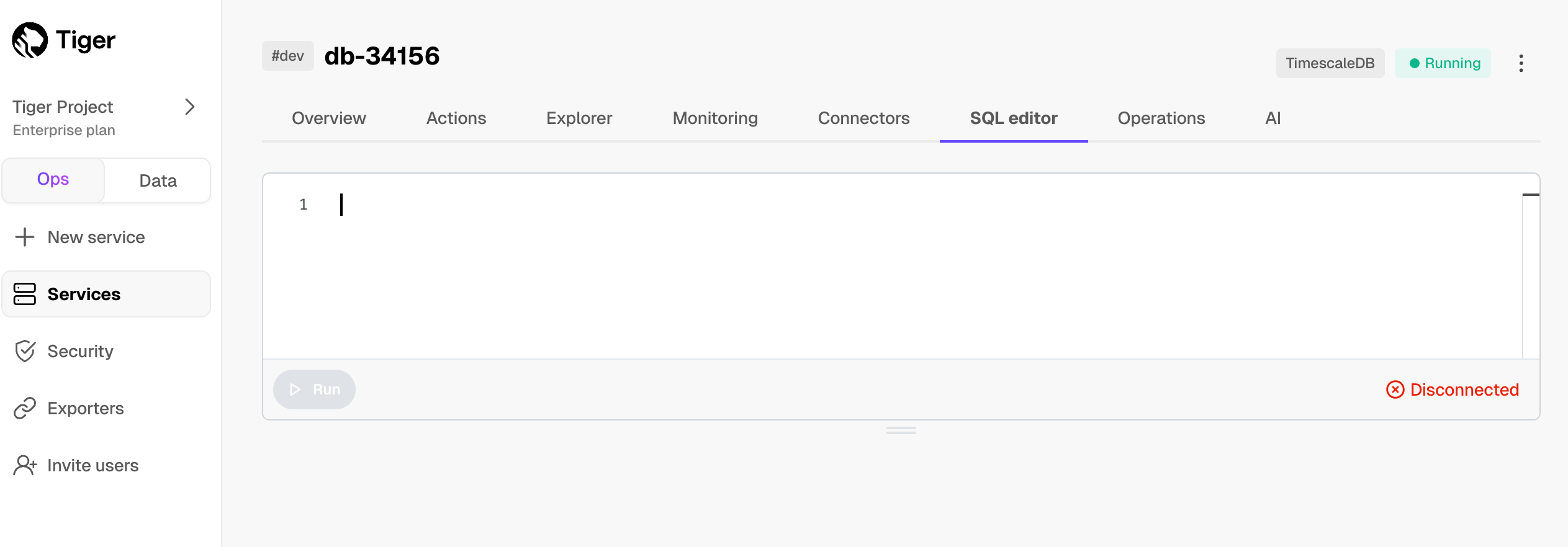 1. **Run a test query** Type `SELECT CURRENT_DATE;` in the UI and click `Run`. The results appear in the lower window: 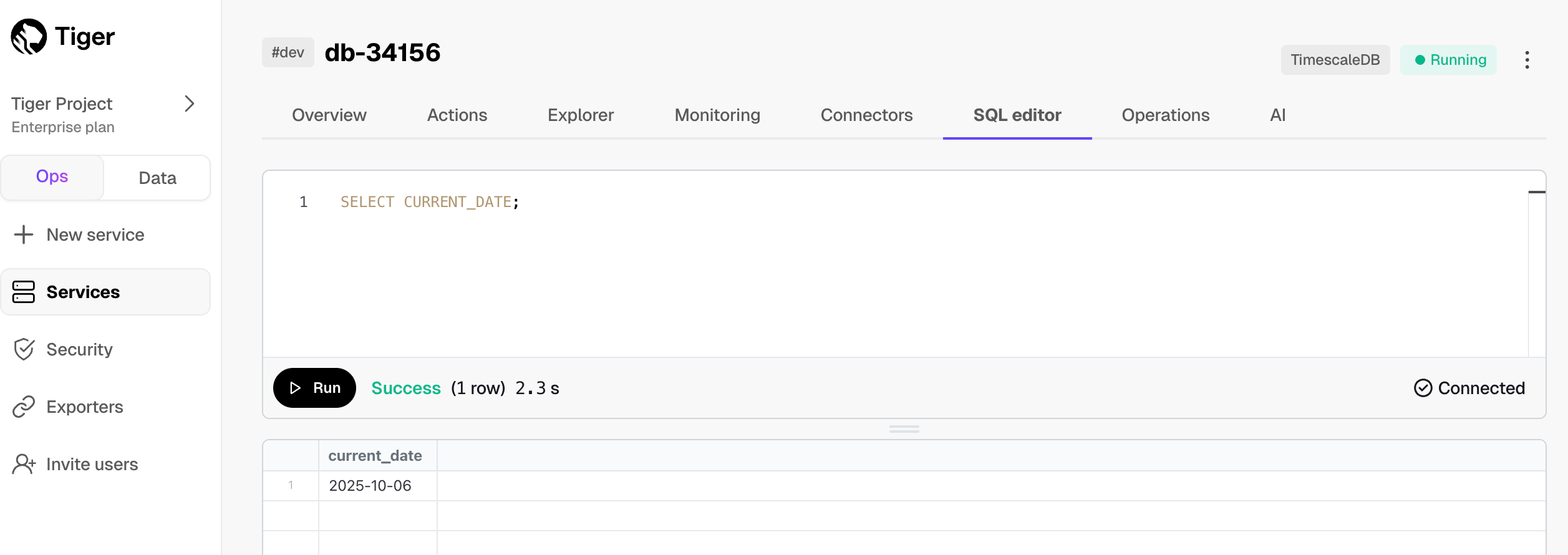 ## Cloud SQL editor licenses * **SQL editor in the ops mode**: free for anyone with a [Tiger Data account][create-cloud-account]. * **Data mode**: the number of seats you are allocated depends on your [pricing plan][pricing-plan-features]. [SQL Assistant][sql-assistant] is currently free for all users. In the future, limits or paid options may be introduced as we work to build the best experience. * **PopSQL standalone**: there is a free plan available to everyone, as well as paid plans. See [PopSQL Pricing][popsql-pricing] for full details. What next? [Try the key features offered by Tiger Data][try-timescale-features], see the [tutorials][tutorials], interact with the data in your Tiger Cloud service using [your favorite programming language][connect-with-code], integrate your Tiger Cloud service with a range of [third-party tools][integrations], plain old [Use Tiger Data products][use-timescale], or dive into the [API reference][use-the-api]. ===== PAGE: https://docs.tigerdata.com/use-timescale/hypertables/ ===== --- ## Python interface for pgvector and pgvectorscale **URL:** llms-txt#python-interface-for-pgvector-and-pgvectorscale **Contents:** - Prerequisites - Install - Basic usage of the timescale_vector library - Advanced usage - Search options - Indexing - Time partitioning - Distance metrics You use pgai to power production grade AI applications. `timescale_vector` is the Python interface you use to interact with a pgai on Tiger Cloud service programmatically. Before you get started with `timescale_vector`: - [Sign up for pgai on Tiger Cloud](https://console.cloud.timescale.com/signup?utm_campaign=vectorlaunch&utm_source=docs&utm_medium=direct): Get 90 days free to try pgai on Tiger Cloud. - [Follow the Get Started Tutorial](https://timescale.github.io/python-vector/tsv_python_getting_started_tutorial.html): Learn how to use pgai on Tiger Cloud for semantic search on a real-world dataset. If you prefer to use an LLM development or data framework, see pgai's integrations with [LangChain](https://python.langchain.com/docs/integrations/vectorstores/timescalevector) and [LlamaIndex](https://gpt-index.readthedocs.io/en/stable/examples/vector_stores/Timescalevector.html). `timescale_vector` depends on the source distribution of `psycopg2` and adheres to [best practices for psycopg2](https://www.psycopg.org/docs/install.html#psycopg-vs-psycopg-binary). Before you install `timescale_vector`: * Follow the [psycopg2 build prerequisites](https://www.psycopg.org/docs/install.html#build-prerequisites). To interact with pgai on Tiger Cloud using Python: 1. Install `timescale_vector`: In these examples, you use `dotenv` to pass secrets and keys. That is it, you are ready to go. ## Basic usage of the timescale_vector library First, import all the necessary libraries: Load up your Postgres credentials, the safest way is with a `.env` file: Next, create the client. This tutorial, uses the sync client. But the library has an async client as well (with an identical interface that uses async functions). The client constructor takes three required arguments: | name | description | |----------------|-------------------------------------------------------------------------------------------| | `service_url` | Tiger Cloud service URL / connection string | | `table_name` | Name of the table to use for storing the embeddings. Think of this as the collection name | | `num_dimensions` | Number of dimensions in the vector | Next, create the tables for the collection: Next, insert some data. The data record contains: - A UUID to uniquely identify the embedding - A JSON blob of metadata about the embedding - The text the embedding represents - The embedding itself Because this data includes UUIDs which become primary keys, upserts should be used for ingest. You can now create a vector index to speed up similarity search: Then, you can query for similar items: [[UUID('73d05df0-84c1-11ee-98da-6ee10b77fd08'), \{'action': 'jump', 'animal': 'fox'\}, 'jumped over the', array([ 1. , 10.8], dtype=float32), 0.00016793422934946456], [UUID('73d05d6e-84c1-11ee-98da-6ee10b77fd08'), \{'animal': 'fox'\}, 'the brown fox', array([1. , 1.3], dtype=float32), 0.14489260377438218]] There are many search options which are covered below in the `Advanced search` section. A simple search example that returns one item using a similarity search constrained by a metadata filter is shown below: [[UUID('73d05df0-84c1-11ee-98da-6ee10b77fd08'), \{'action': 'jump', 'animal': 'fox'\}, 'jumped over the', array([ 1. , 10.8], dtype=float32), 0.00016793422934946456]] The returned records contain 5 fields: | name | description | |-----------|---------------------------------------------------------| | id | The UUID of the record | | metadata | The JSON metadata associated with the record | | contents | the text content that was embedded | | embedding | The vector embedding | | distance | The distance between the query embedding and the vector | You can access the fields by simply using the record as a dictionary keyed on the field name: (UUID('73d05df0-84c1-11ee-98da-6ee10b77fd08'), \{'action': 'jump', 'animal': 'fox'\}, 'jumped over the', array([ 1. , 10.8], dtype=float32), 0.00016793422934946456) You can delete by ID: Or you can delete by metadata filters: To delete all records use: This section goes into more detail about the Python interface. It covers: 1. Search filter options - how to narrow your search by additional constraints 2. Indexing - how to speed up your similarity queries 3. Time-based partitioning - how to optimize similarity queries that filter on time 4. Setting different distance types to use in distance calculations The `search` function is very versatile and allows you to search for the right vector in a wide variety of ways. This section describes the search option in 3 parts: 1. Basic similarity search. 2. How to filter your search based on the associated metadata. 3. Filtering on time when time-partitioning is enabled. The following examples are based on this data: The basic query looks like this: [[UUID('7487af96-84c1-11ee-98da-6ee10b77fd08'), \{'times': 100, 'action': 'jump', 'animal': 'fox'\}, 'jumped over the', array([ 1. , 10.8], dtype=float32), 0.00016793422934946456], [UUID('7487af14-84c1-11ee-98da-6ee10b77fd08'), \{'times': 1, 'action': 'sit', 'animal': 'fox'\}, 'the brown fox', array([1. , 1.3], dtype=float32), 0.14489260377438218]] You could provide a limit for the number of items returned: [[UUID('7487af96-84c1-11ee-98da-6ee10b77fd08'), \{'times': 100, 'action': 'jump', 'animal': 'fox'\}, 'jumped over the', array([ 1. , 10.8], dtype=float32), 0.00016793422934946456]]