Test the connection between your RDS/Aurora Postgres and EC2 instances
- In [https://console.aws.amazon.com/rds/home#databases:][databases], select the RDS/Aurora Postgres instance to migrate.
- On your intermediary EC2 instance, use the values of
Endpoint,Port,Master username, andDB nameto create the postgres connectivity string to theSOURCEvariable.

The value of Master password was supplied when this RDS/Aurora Postgres instance was created.
Test your connection:
You are connected to your RDS/Aurora Postgres instance from your intermediary EC2 instance.
===== PAGE: https://docs.tigerdata.com/_partials/_transit-gateway/ =====
Create a Peering VPC in [Tiger Cloud Console][console-login]
In
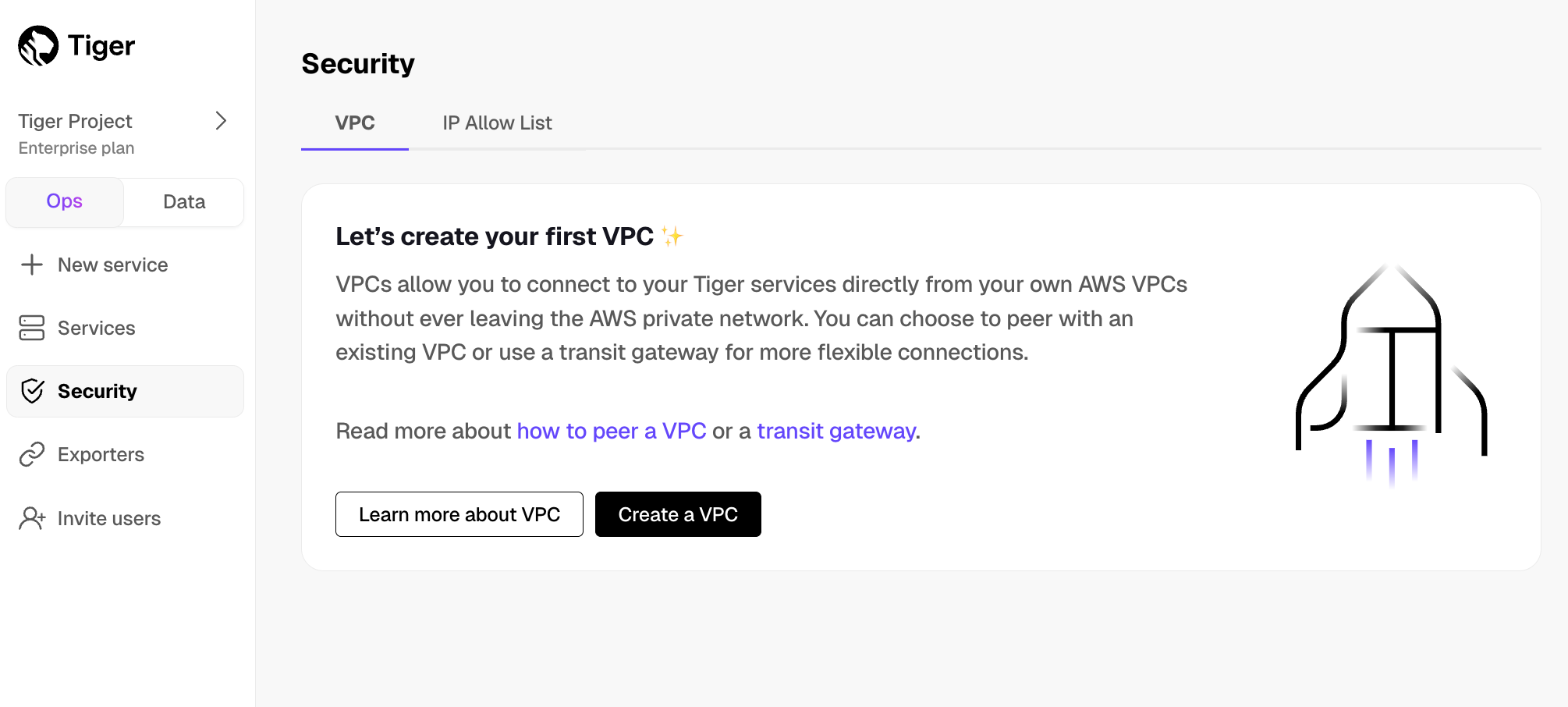
Security>VPC, clickCreate a VPC:
- Choose your region and IP range, name your VPC, then click
Create VPC:
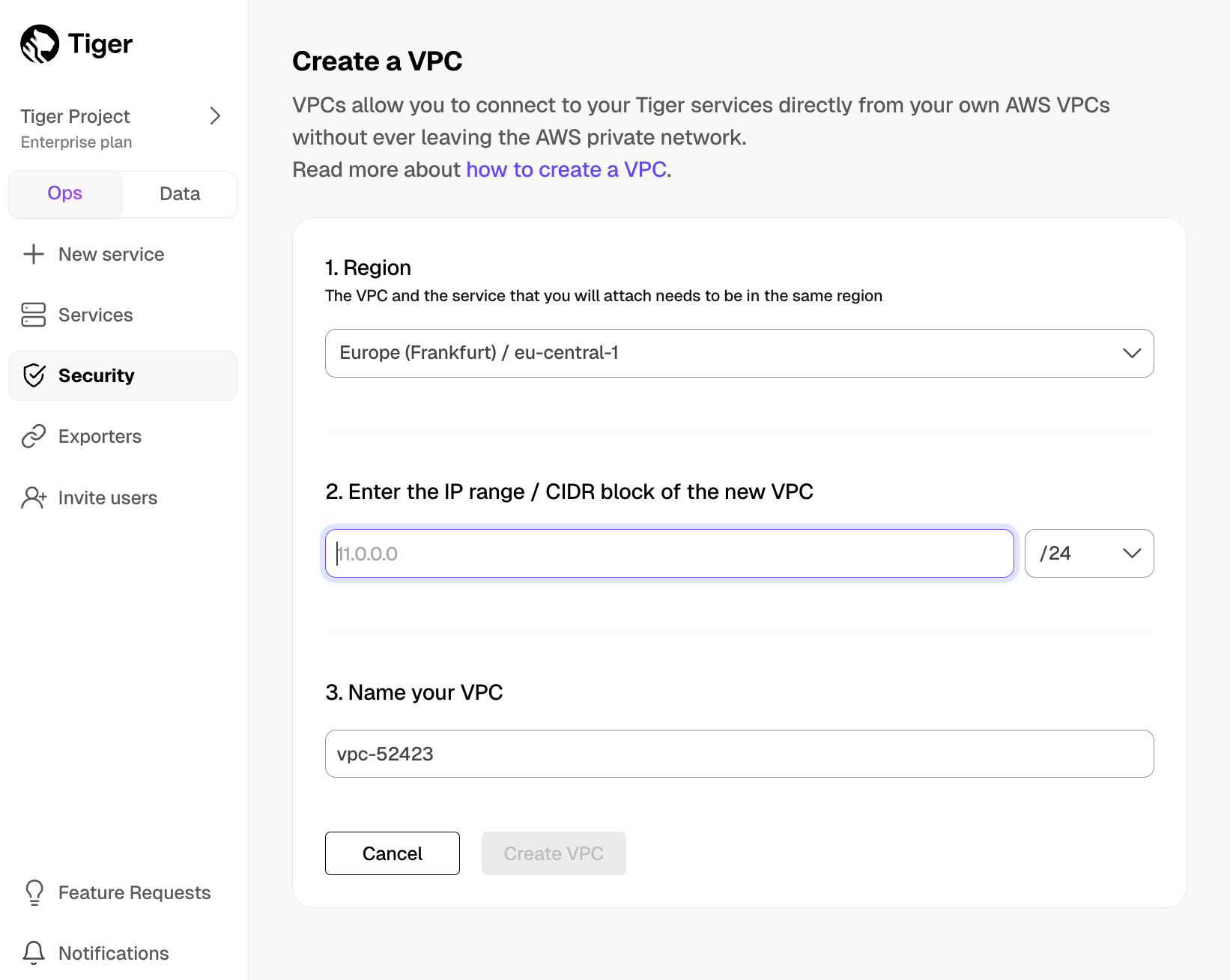
Your service and Peering VPC must be in the same AWS region. The number of Peering VPCs you can create in your project depends on your [pricing plan][pricing-plans]. If you need another Peering VPC, either contact support@tigerdata.com or change your plan in [Tiger Cloud Console][console-login].
Add a peering connection:
In the
VPC Peeringcolumn, clickAdd. 1. Provide your AWS account ID, Transit Gateway ID, CIDR ranges, and AWS region. Tiger Cloud creates a new isolated connection for every unique Transit Gateway ID.
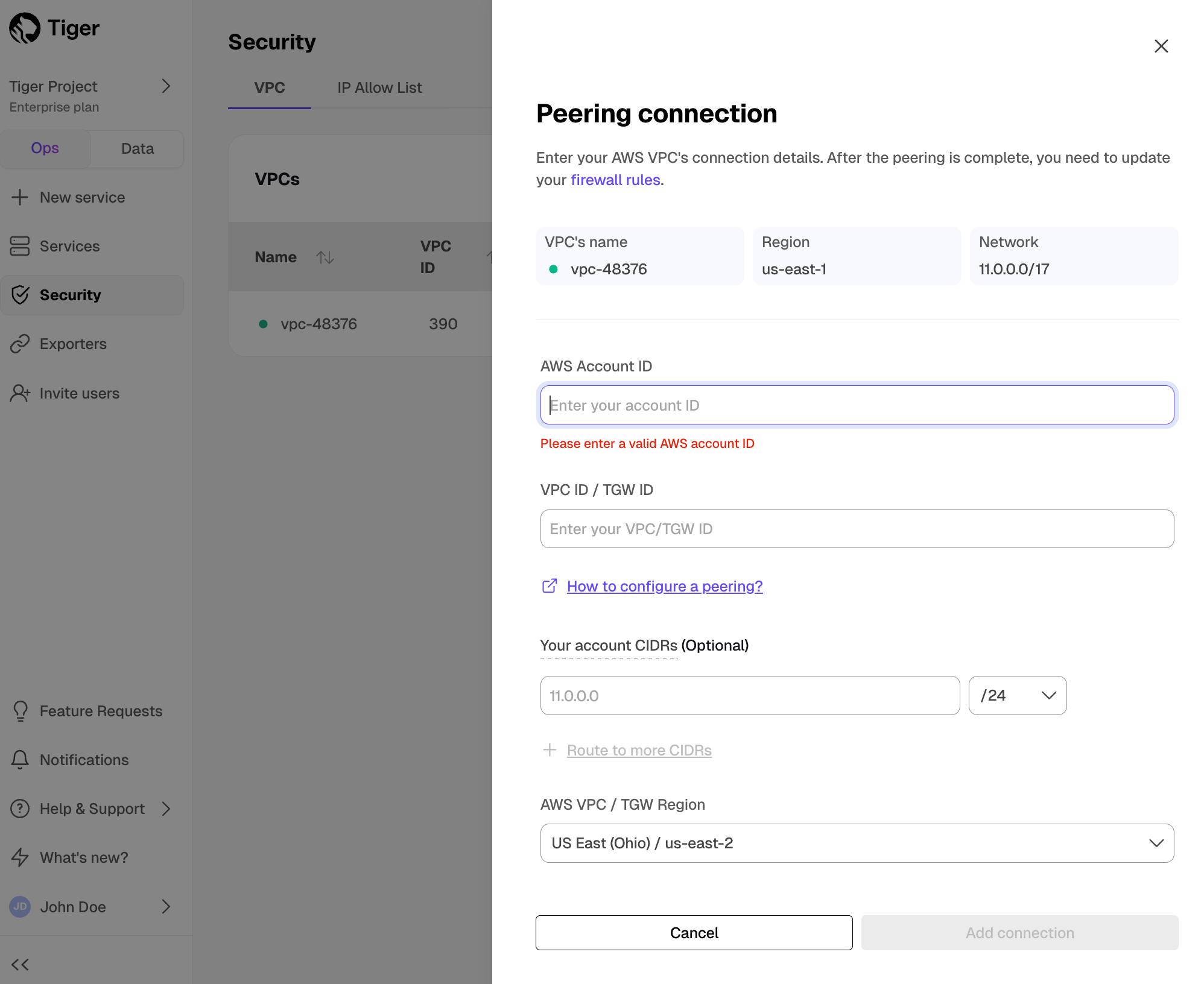
Click
Add connection.Accept and configure peering connection in your AWS account
Once your peering connection appears as Processing, you can accept and configure it in AWS:
Accept the peering request coming from Tiger Cloud. The request can take up to 5 min to arrive. Within 5 more minutes after accepting, the peering should appear as
Connectedin Tiger Cloud Console.Configure at least the following in your AWS account networking:
- Your subnet route table to route traffic to your Transit Gateway for the Peering VPC CIDRs. - Your Transit Gateway route table to route traffic to the newly created Transit Gateway peering attachment for the Peering VPC CIDRs. - Security groups to allow outbound TCP 5432.
Attach a Tiger Cloud service to the Peering VPC In [Tiger Cloud Console][console-services]
Select the service you want to connect to the Peering VPC.
- Click
Operations>Security>VPC. - Select the VPC, then click
Attach VPC.
- Click
You cannot attach a Tiger Cloud service to multiple Tiger Cloud VPCs at the same time.
===== PAGE: https://docs.tigerdata.com/_partials/_cloud-intro-short/ =====
A Tiger Cloud service is a single optimised Postgres instance extended with innovations in the database engine such as TimescaleDB, in a cloud infrastructure that delivers speed without sacrifice.
A Tiger Cloud service is a radically faster Postgres database for transactional, analytical, and agentic workloads at scale.
It’s not a fork. It’s not a wrapper. It is Postgres—extended with innovations in the database engine and cloud infrastructure to deliver speed (10-1000x faster at scale) without sacrifice. A Tiger Cloud service brings together the familiarity and reliability of Postgres with the performance of purpose-built engines.
Tiger Cloud is the fastest Postgres cloud. It includes everything you need to run Postgres in a production-reliable, scalable, observable environment.
===== PAGE: https://docs.tigerdata.com/_partials/_since_2_22_0/ =====
Since TimescaleDB v2.22.0
===== PAGE: https://docs.tigerdata.com/_partials/_integration-prereqs/ =====
To follow the steps on this page:
- Create a target [Tiger Cloud service][create-service] with the Real-time analytics capability.
You need [your connection details][connection-info]. This procedure also works for [self-hosted TimescaleDB][enable-timescaledb].
===== PAGE: https://docs.tigerdata.com/_partials/_cloud_self_configuration/ =====
Please refer to the [Grand Unified Configuration (GUC) parameters][gucs] for a complete list.
timescaledb.max_background_workers (int)
Max background worker processes allocated to TimescaleDB. Set to at least 1 + the number of databases loaded with the TimescaleDB extension in a Postgres instance. Default value is 16.