15.5 Godot Game Scene Construction
Why Choose Godot as the Game Engine?
Among many game engines, we chose Godot 4.5 as the front-end engine, mainly based on the following considerations:
(1) Godot has natural advantages in 2D game development. Cyber Town is a top-down 2D pixel-style game. Godot's 2D engine is very mature, providing node types specifically designed for 2D games such as TileMap, AnimatedSprite2D, CharacterBody2D, etc. Development efficiency is much higher than engines like Unity. Godot's Scene System allows us to encapsulate elements like players, NPCs, and UI into independent scenes, then instantiate them in the main scene. This component-based design is very suitable for our needs.
(2) Godot is completely open source and free. Godot uses the MIT license, with no royalty fees or revenue sharing, which is very friendly for teaching projects and open source projects. You can freely modify the engine source code and commercialize games without worrying about licensing issues. In contrast, although Unity is powerful, it introduced a runtime fee policy in 2024, causing widespread controversy in the developer community.
(3) Godot has an extremely low learning cost. Godot uses GDScript as its main scripting language, a dynamically typed language similar to Python with concise and easy-to-understand syntax and a very gentle learning curve. For readers already familiar with Python, learning GDScript has almost no barrier - variable declarations, function definitions, control flow, and other syntax are highly similar to Python. You can even start writing game scripts within a few hours. Godot's node tree structure is also very intuitive, you can visually see the scene's hierarchical relationships in the editor, which is very friendly for beginners.
(4) Godot integrates very simply with Python back-ends. Godot has a built-in HTTPRequest node that can easily communicate with FastAPI back-ends via HTTP. We only need to create an API client script encapsulating all API calls to invoke back-end AI capabilities in the game. This front-end and back-end separation architecture allows us to independently develop and test game logic and AI logic, greatly improving development efficiency.
Of course, Godot also has some limitations. For example, Godot's 3D capabilities still lag behind Unreal Engine and Unity. If you want to develop large-scale 3D games, you may need to consider other engines. But for 2D games, indie games, and teaching projects, Godot is an excellent choice.
15.5.1 Scene Design and Resource Organization
After understanding Godot's scene system, let's look at Cyber Town's scene design. The entire game consists of four core scenes: Main (main scene), Player (player), NPC (non-player character), and DialogueUI (dialogue interface). Each scene is an independent module that can be edited and tested separately, then combined to form a complete game.
Cyber Town's scene organization adopts a modular design. We first create three basic scenes: Player (player), NPC (non-player character), and DialogueUI (dialogue interface). Then in Main (main scene), we instantiate and combine these scenes. It's particularly worth noting that the three NPCs (Zhang San, Li Si, Wang Wu) are all instances of the same NPC scene, just with different role information set through script parameters.
Let's first look at the structure of the four core scenes, as shown in Figure 15.12:
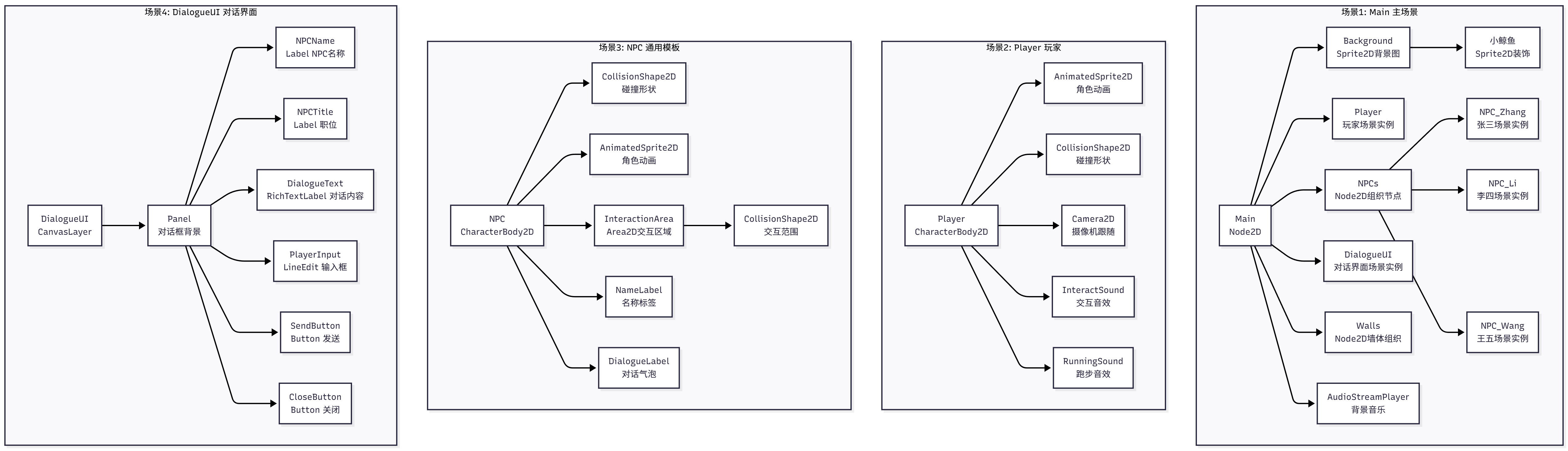
Figure 15.12 Four Core Scenes of Cyber Town
This diagram shows four independent scenes and their internal structures. Scene 1 (Main) is the main scene, containing background image (Sprite2D), player instance, NPCs organization node (with three NPC instances below), dialogue interface instance, walls organization node, and background music. Note that Player, NPC_Zhang, NPC_Li, NPC_Wang, and DialogueUI here are scene instances, not ordinary nodes. Scene 2 (Player) defines the player character structure, including animation, collision, camera, and two sound effect nodes. Scene 3 (NPC) is a generic template - Zhang San, Li Si, and Wang Wu are all instances of this scene, containing collision, animation, interaction area, and two labels. Scene 4 (DialogueUI) is a CanvasLayer node containing Panel and various UI elements.
The scene instantiation process can be understood this way: We created the NPC.tscn scene file in the Godot editor, defining the NPC's node structure. Then in the Main scene, we "instantiated" this NPC scene three times, creating three independent copies named NPC_Zhang, NPC_Li, and NPC_Wang respectively. Each copy has its own position and state, but they share the same node structure. If we modify NPC.tscn, such as adding a new sound effect node to the NPC, all three instances will automatically get this sound effect.
The steps to create these scenes in Godot are as follows:
Create Player scene: Create new scene, select CharacterBody2D as root node, add AnimatedSprite2D, CollisionShape2D, Camera2D, InteractSound, and RunningSound child nodes, save as Player.tscn.
Create NPC scene: Create new scene, select CharacterBody2D as root node, add CollisionShape2D, AnimatedSprite2D, InteractionArea (Area2D with CollisionShape2D below), NameLabel, and DialogueLabel child nodes, save as NPC.tscn.
Create DialogueUI scene: Create new scene, select CanvasLayer as root node, add Panel child node, under Panel add NPCName, NPCTitle, DialogueText (RichTextLabel), PlayerInput (LineEdit), SendButton, and CloseButton, save as DialogueUI.tscn.
Create Main scene: Create new scene, select Node2D as root node, add Background (Sprite2D) as background image, under Background add whale decoration, then instantiate Player scene, create NPCs node and instantiate NPC scene three times below it, instantiate DialogueUI scene, create Walls node for organizing wall collisions, finally add AudioStreamPlayer to play background music.
The advantages of this scene organization method are: each scene is independent and can be tested separately; NPCs use instances of the same scene, modifying once affects all NPCs; scenes communicate through signals with low coupling, easy to maintain and extend.
15.5.2 Player Control Implementation
The player character is one of the most important elements in the game. We need to implement WASD movement control, animation switching, collision detection, interaction with NPCs, and sound effects system.
The player scene structure includes: a CharacterBody2D as the root node, responsible for physics movement and collision; an AnimatedSprite2D displaying character animation; a CollisionShape2D defining collision shape; a Camera2D following the player; two AudioStreamPlayers playing interaction sound effects and walking sound effects respectively.
The player control script player.gd implements movement, interaction, and sound effect logic:
extends CharacterBody2D

# Movement speed
@export var speed: float = 200.0

# Currently interactable NPC
var nearby_npc: Node = null

# Interaction state (disable movement during interaction)
var is_interacting: bool = false

# Node references
@onready var animated_sprite: AnimatedSprite2D = $AnimatedSprite2D
@onready var camera: Camera2D = $Camera2D

# Sound effect references
@onready var interact_sound: AudioStreamPlayer = null
@onready var running_sound: AudioStreamPlayer = null

# Walking sound effect state
var is_playing_running_sound: bool = false

func _ready():
    # Add to player group (important! NPCs need this group to identify player)
    add_to_group("player")

    # Get sound effect nodes (optional, won't error if doesn't exist)
    interact_sound = get_node_or_null("InteractSound")
    running_sound = get_node_or_null("RunningSound")

    # Enable camera
    camera.enabled = true

    # Play default animation
    if animated_sprite.sprite_frames != null and animated_sprite.sprite_frames.has_animation("idle"):
        animated_sprite.play("idle")

func _physics_process(_delta: float):
    # If interacting, disable movement
    if is_interacting:
        velocity = Vector2.ZERO
        move_and_slide()
        # Play idle animation
        if animated_sprite.sprite_frames != null and animated_sprite.sprite_frames.has_animation("idle"):
            animated_sprite.play("idle")
        # Stop walking sound effect
        stop_running_sound()
        return

    # Get input direction
    var input_direction = Input.get_vector("ui_left", "ui_right", "ui_up", "ui_down")

    # Set velocity
    velocity = input_direction * speed

    # Move
    move_and_slide()

    # Update animation and direction
    update_animation(input_direction)

    # Update walking sound effect
    update_running_sound(input_direction)

func update_animation(direction: Vector2):
    """Update character animation (supports 4 directions)"""
    if animated_sprite.sprite_frames == null:
        return

    # Play animation based on movement direction
    if direction.length() > 0:
        # Moving - determine main direction
        if abs(direction.x) > abs(direction.y):
            # Left-right movement
            if direction.x > 0:
                # Right
                if animated_sprite.sprite_frames.has_animation("walk_right"):
                    animated_sprite.play("walk_right")
                    animated_sprite.flip_h = false
                elif animated_sprite.sprite_frames.has_animation("walk"):
                    animated_sprite.play("walk")
                    animated_sprite.flip_h = false
            else:
                # Left
                if animated_sprite.sprite_frames.has_animation("walk_left"):
                    animated_sprite.play("walk_left")
                    animated_sprite.flip_h = false
                elif animated_sprite.sprite_frames.has_animation("walk"):
                    animated_sprite.play("walk")
                    animated_sprite.flip_h = true
        else:
            # Up-down movement
            if direction.y > 0:
                # Down
                if animated_sprite.sprite_frames.has_animation("walk_down"):
                    animated_sprite.play("walk_down")
                elif animated_sprite.sprite_frames.has_animation("walk"):
                    animated_sprite.play("walk")
            else:
                # Up
                if animated_sprite.sprite_frames.has_animation("walk_up"):
                    animated_sprite.play("walk_up")
                elif animated_sprite.sprite_frames.has_animation("walk"):
                    animated_sprite.play("walk")
    else:
        # Idle
        if animated_sprite.sprite_frames.has_animation("idle"):
            animated_sprite.play("idle")

func _input(event: InputEvent):
    # Press E key to interact with NPC
    if event is InputEventKey:
        if event.pressed and not event.echo:
            if event.keycode == KEY_E or event.keycode == KEY_ENTER:
                if nearby_npc != null:
                    interact_with_npc()

func interact_with_npc():
    """Interact with nearby NPC"""
    if nearby_npc != null:
        # Play interaction sound effect
        if interact_sound:
            interact_sound.play()

        # Send signal to dialogue system
        get_tree().call_group("dialogue_system", "start_dialogue", nearby_npc.npc_name)

func set_nearby_npc(npc: Node):
    """Set nearby NPC"""
    nearby_npc = npc

func set_interacting(interacting: bool):
    """Set interaction state"""
    is_interacting = interacting
    if interacting:
        # Stop walking sound effect
        stop_running_sound()

func update_running_sound(direction: Vector2):
    """Update walking sound effect"""
    if running_sound == null:
        return

    # If moving
    if direction.length() > 0:
        # If sound effect not playing yet, start playing
        if not is_playing_running_sound:
            running_sound.play()
            is_playing_running_sound = true
    else:
        # If stopped moving, stop sound effect
        stop_running_sound()

func stop_running_sound():
    """Stop walking sound effect"""
    if running_sound and is_playing_running_sound:
        running_sound.stop()
        is_playing_running_sound = false
This script implements complete player control. Players use WASD keys (or arrow keys) to move, and the character plays corresponding 4-direction animations (walk_up/down/left/right) based on movement direction. When the player approaches an NPC, the NPC calls set_nearby_npc() to set itself as an interactable object, and the player can press the E key to trigger interaction. During interaction, sound effects play, and call_group() notifies the dialogue system to start conversation. During dialogue, set_interacting(true) disables player movement, which is restored after dialogue ends. Walking sound effects automatically play when the player moves and automatically stop when stopped.
15.5.3 NPC Behavior and Interaction
NPCs need to implement three core functions: randomly patrol and wander in the scene, respond to player interactions, and display dialogue bubbles. We use Area2D to detect whether the player is near the NPC. When the player enters the interaction range, the player is notified, and pressing the E key starts the conversation.
The NPC scene structure includes: CharacterBody2D as root node; CollisionShape2D defines NPC collision shape; AnimatedSprite2D displays NPC animation; InteractionArea (Area2D) detects player entering interaction range, with CollisionShape2D below defining interaction range; NameLabel displays NPC name; DialogueLabel displays dialogue bubble.
The NPC script npc.gd implements patrol, interaction, and dialogue bubble logic:
extends CharacterBody2D

# NPC information
@export var npc_name: String = "Zhang San"
@export var npc_title: String = "Python Engineer"

# NPC appearance configuration
@export var sprite_frames: SpriteFrames = null  # Custom sprite frame resource

# NPC movement configuration
@export var move_speed: float = 50.0  # Movement speed
@export var wander_enabled: bool = true  # Whether to enable patrol
@export var wander_range: float = 200.0  # Patrol range
@export var wander_interval_min: float = 3.0  # Minimum patrol interval (seconds)
@export var wander_interval_max: float = 8.0  # Maximum patrol interval (seconds)

# Current dialogue content (obtained from back-end)
var current_dialogue: String = ""

# Node references
@onready var animated_sprite: AnimatedSprite2D = $AnimatedSprite2D
@onready var interaction_area: Area2D = $InteractionArea
@onready var name_label: Label = $NameLabel
@onready var dialogue_label: Label = $DialogueLabel

# Player reference
var player: Node = null

# Patrol-related variables
var wander_target: Vector2 = Vector2.ZERO  # Patrol target position
var wander_timer: float = 0.0  # Patrol timer
var is_wandering: bool = false  # Whether currently patrolling
var is_interacting: bool = false  # Whether currently interacting with player
var spawn_position: Vector2 = Vector2.ZERO  # Spawn position

func _ready():
    # Add to npcs group
    add_to_group("npcs")

    # Set NPC name
    name_label.text = npc_name

    # Connect interaction area signals
    interaction_area.body_entered.connect(_on_body_entered)
    interaction_area.body_exited.connect(_on_body_exited)

    # Initialize dialogue label
    dialogue_label.text = ""
    dialogue_label.visible = false

    # Set custom sprite frames (if any)
    if sprite_frames != null:
        animated_sprite.sprite_frames = sprite_frames

    # Play default animation
    if animated_sprite.sprite_frames != null and animated_sprite.sprite_frames.has_animation("idle"):
        animated_sprite.play("idle")

    # Record spawn position
    spawn_position = global_position

    # Initialize patrol timer
    if wander_enabled:
        wander_timer = randf_range(wander_interval_min, wander_interval_max)
        choose_new_wander_target()

func _on_body_entered(body: Node2D):
    """Player enters interaction range"""
    if body.is_in_group("player"):
        player = body

        if player.has_method("set_nearby_npc"):
            player.set_nearby_npc(self)

func _on_body_exited(body: Node2D):
    """Player leaves interaction range"""
    if body.is_in_group("player"):
        if player != null and player.has_method("set_nearby_npc"):
            player.set_nearby_npc(null)
        player = null

func update_dialogue(dialogue: String):
    """Update NPC dialogue content"""
    current_dialogue = dialogue
    dialogue_label.text = dialogue
    dialogue_label.visible = true

    # Hide dialogue after 10 seconds
    await get_tree().create_timer(10.0).timeout
    dialogue_label.visible = false

func _physics_process(delta: float):
    """Physics update - handle movement"""
    # If interacting with player, stop movement
    if is_interacting:
        velocity = Vector2.ZERO
        move_and_slide()
        # Play idle animation
        if animated_sprite.sprite_frames != null and animated_sprite.sprite_frames.has_animation("idle"):
            animated_sprite.play("idle")
        return

    # If patrol not enabled, don't move
    if not wander_enabled:
        return

    # Update patrol timer
    wander_timer -= delta

    # If timer ends, choose new target and start moving
    if wander_timer <= 0:
        choose_new_wander_target()
        wander_timer = randf_range(wander_interval_min, wander_interval_max)

    # If patrolling, move to target
    if is_wandering:
        # Check if reached target
        if global_position.distance_to(wander_target) < 10:
            # Reached target, stop movement
            is_wandering = false
            velocity = Vector2.ZERO
            move_and_slide()
            # Play idle animation
            if animated_sprite.sprite_frames != null and animated_sprite.sprite_frames.has_animation("idle"):
                animated_sprite.play("idle")
        else:
            # Continue moving to target
            var direction = (wander_target - global_position).normalized()
            velocity = direction * move_speed
            move_and_slide()
            # Update animation
            update_animation(direction)
    else:
        # Stop movement
        velocity = Vector2.ZERO
        move_and_slide()
        # Play idle animation
        if animated_sprite.sprite_frames != null and animated_sprite.sprite_frames.has_animation("idle"):
            animated_sprite.play("idle")

func choose_new_wander_target():
    """Choose new patrol target"""
    # Randomly choose a point near spawn position
    var offset = Vector2(
        randf_range(-wander_range, wander_range),
        randf_range(-wander_range, wander_range)
    )
    wander_target = spawn_position + offset
    is_wandering = true

func update_animation(direction: Vector2):
    """Update animation"""
    if animated_sprite.sprite_frames == null:
        return

    if direction.length() > 0:
        # Movement animation
        if abs(direction.x) > abs(direction.y):
            # Left-right movement
            if direction.x > 0:
                if animated_sprite.sprite_frames.has_animation("walk_right"):
                    animated_sprite.play("walk_right")
                elif animated_sprite.sprite_frames.has_animation("walk"):
                    animated_sprite.play("walk")
                    animated_sprite.flip_h = false
            else:
                if animated_sprite.sprite_frames.has_animation("walk_left"):
                    animated_sprite.play("walk_left")
                elif animated_sprite.sprite_frames.has_animation("walk"):
                    animated_sprite.play("walk")
                    animated_sprite.flip_h = true
        else:
            # Up-down movement
            if direction.y > 0:
                if animated_sprite.sprite_frames.has_animation("walk_down"):
                    animated_sprite.play("walk_down")
                elif animated_sprite.sprite_frames.has_animation("walk"):
                    animated_sprite.play("walk")
            else:
                if animated_sprite.sprite_frames.has_animation("walk_up"):
                    animated_sprite.play("walk_up")
                elif animated_sprite.sprite_frames.has_animation("walk"):
                    animated_sprite.play("walk")
    else:
        # Idle animation
        if animated_sprite.sprite_frames.has_animation("idle"):
            animated_sprite.play("idle")

func set_interacting(interacting: bool):
    """Set interaction state"""
    is_interacting = interacting
This script implements complete NPC behavior. NPCs randomly patrol within the wander_range around their spawn position, choosing a new target point and moving there every wander_interval_min to wander_interval_max seconds. During movement, 4-direction animations (walk_up/down/left/right) play, and upon reaching the target, they stop and play the idle animation. When a player enters the InteractionArea, the NPC calls the player's set_nearby_npc(self) method, setting itself as an interactable object. After the player presses the E key, the dialogue system calls the NPC's set_interacting(true) method, and the NPC stops moving. After dialogue ends, set_interacting(false) is called, and the NPC resumes patrol. The main scene periodically calls the update_dialogue() method to update the NPC's dialogue bubble, displaying autonomous dialogue content between NPCs.