Building MCP servers for plugins and API integrations
For the complete documentation index, see llms.txt. Markdown versions of documentation pages are available by appending
.mdto the page URL.
Model Context Protocol (MCP) is an open protocol that's becoming the industry standard for extending AI models with additional tools and knowledge. Remote MCP servers can be used to connect models over the Internet to new data sources and capabilities.
In this guide, we'll cover how to build a remote MCP server that reads data from a private data source (a vector store) and makes it available through a plugin in ChatGPT and Codex, through ChatGPT deep research and company knowledge, and through the API.
Note: To build a plugin with an MCP server, start with the plugin docs: Quickstart, Build your MCP server, Connect and test your plugin, and Authentication. If your MCP server doesn't need UI, you can expose tools without UI resources.
Configure a data source
You can use data from any source to power a remote MCP server, but for simplicity, we will use vector stores in the OpenAI API. Begin by uploading a PDF document to a new vector store - you can use this public domain 19th century book about cats for an example.
You can upload files and create a vector store in the dashboard here, or you can create vector stores and upload files via API. Follow the vector store guide to set up a vector store and upload a file to it.
Make a note of the vector store's unique ID to use in the example to follow.
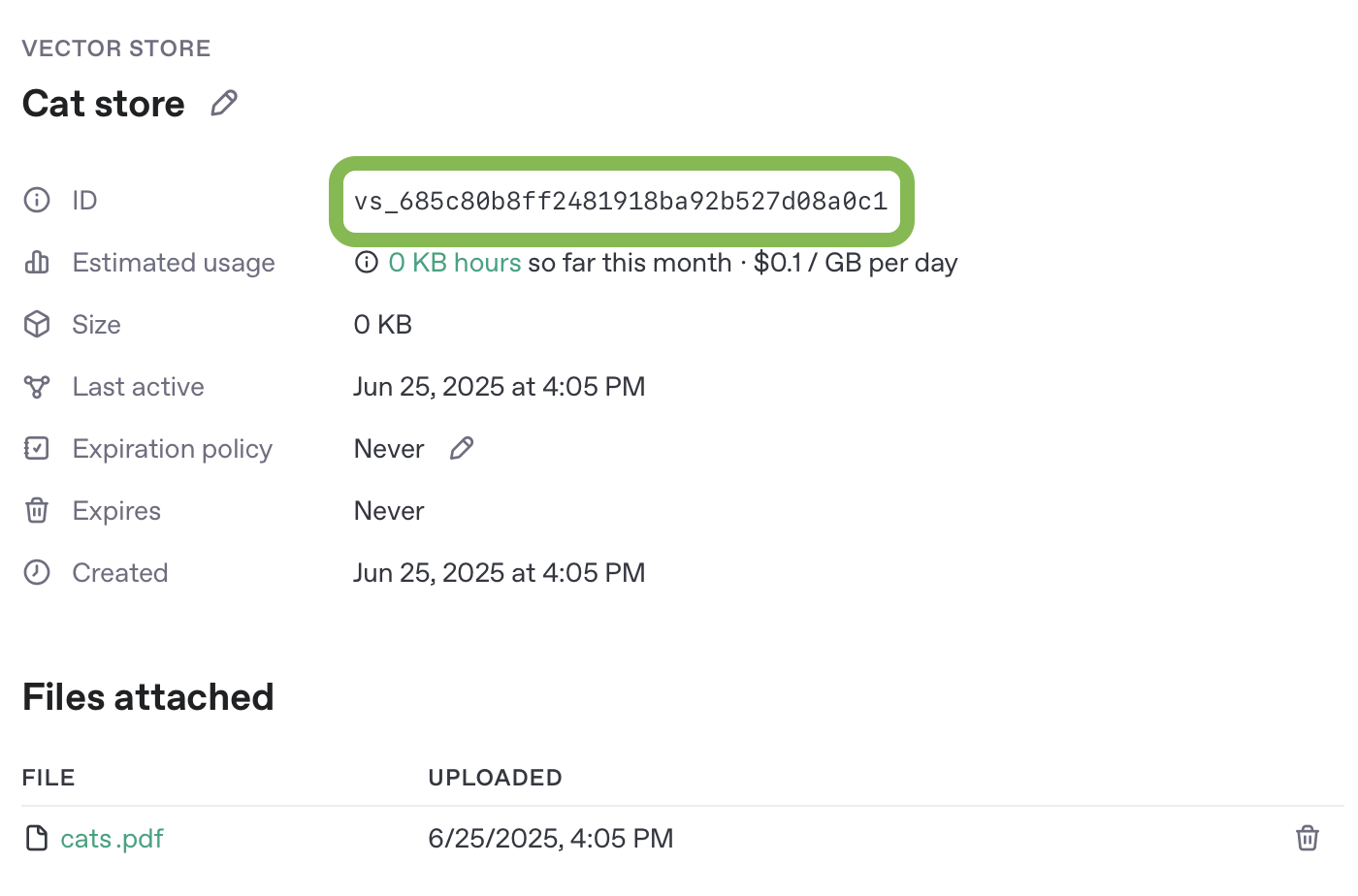
Create an MCP server
Next, let's create a remote MCP server that will do search queries against our vector store, and be able to return document content for files with a given ID.
In this example, we are going to build our MCP server using Python and FastMCP. A full implementation of the server appears at the end of this section, along with instructions for running it in a browser-based development environment.
Note that there are a number of other MCP server frameworks you can use in a variety of programming languages. Whichever framework you use though, the tool definitions in your server will need to conform to the shape described here.
To work with ChatGPT deep research and company knowledge, your MCP server should implement two read-only tools: search and fetch, using the compatibility schema in Company knowledge compatibility. The same interface is useful for research workflows via API.
Declare an output schema for each tool so clients can validate the result shape. In FastMCP, typed return models can generate this schema automatically; the example below passes output_schema explicitly from the same models.
search tool
The search tool is responsible for returning a list of relevant search results from your MCP server's data source, given a user's query.
Arguments:
A single query string.
Returns:
An object with a single key, results, whose value is an array of result objects. Each result object should include:
id- a unique ID for the document or search result itemtitle- human-readable title.url- canonical URL for citation.
In MCP, return this object as structuredContent and include the same value as a JSON-encoded string in the content array for compatibility.
The final tool response should look like:
{
  "structuredContent": {
    "results": [{ "id": "doc-1", "title": "...", "url": "..." }]
  },
  "content": [
    {
      "type": "text",
      "text": "{\"results\":[{\"id\":\"doc-1\",\"title\":\"...\",\"url\":\"...\"}]}"
    }
  ]
}
fetch tool
The fetch tool is used to retrieve the full contents of a search result document or item.
Arguments:
A string which is a unique identifier for the search document.
Returns:
A single object with the following properties:
id- a unique ID for the document or search result itemtitle- a string title for the search result itemtext- The full text of the document or itemurl- a URL to the document or search result item. Useful for citing specific resources in research.metadata- an optional key/value pairing of data about the result
In MCP, return this object as structuredContent and include the same value as a JSON-encoded string in the content array for compatibility.
The final tool response should look like:
{
  "structuredContent": {
    "id": "doc-1",
    "title": "...",
    "text": "full text...",
    "url": "https://example.com/doc",
    "metadata": { "source": "vector_store" }
  },
  "content": [
    {
      "type": "text",
      "text": "{\"id\":\"doc-1\",\"title\":\"...\",\"text\":\"full text...\",\"url\":\"https://example.com/doc\",\"metadata\":{\"source\":\"vector_store\"}}"
    }
  ]
}