Tools
Use this section to tell the model how to use your functions and tools. Spell out when and when not to call a tool, which arguments to collect, what to say while a call is running, and how to handle errors or partial results.
Tool Selection
gpt-realtime-1.5 follows instructions closely. However, if you have instructions that conflict with what the model can access, such as mentioning tools in your prompt that are NOT passed in the tools list, it can lead to bad responses.
- When to use: Prompts mention tools that aren’t actually available.
- What it does: Reviews the available tools and system prompt to ensure they align.
Example
# Tools
## lookup_account(email_or_phone)
...

## check_outage(address)
...
We need to ensure the same tools are available and the descriptions do not contradict each other:
[
{
    "name": "lookup_account",
    "description": "Retrieve a customer account using either an email or phone number to enable verification and account-specific actions.",
    "parameters": {
      ...
  },
{
    "name": "check_outage",
    "description": "Check for network outages affecting a given service address and return status and ETA if applicable.",
    "parameters": {
      ...
  }
]
Tool Call Preambles
Some use cases could benefit from the Realtime model providing an audio response at the same time as calling a tool. This leads to a better user experience, masking latency. You can modify the sample phrase to fit your use case.
- When to use: Users need immediate confirmation at the same time as a tool call; helps mask latency.
- What it does: Adds a short, consistent preamble before a tool call.
Example
# Tools
- Before any tool call, say one short line like “I’m checking that now.” Then call the tool immediately.
These are the responses after applying the instruction using gpt-realtime-1.5.
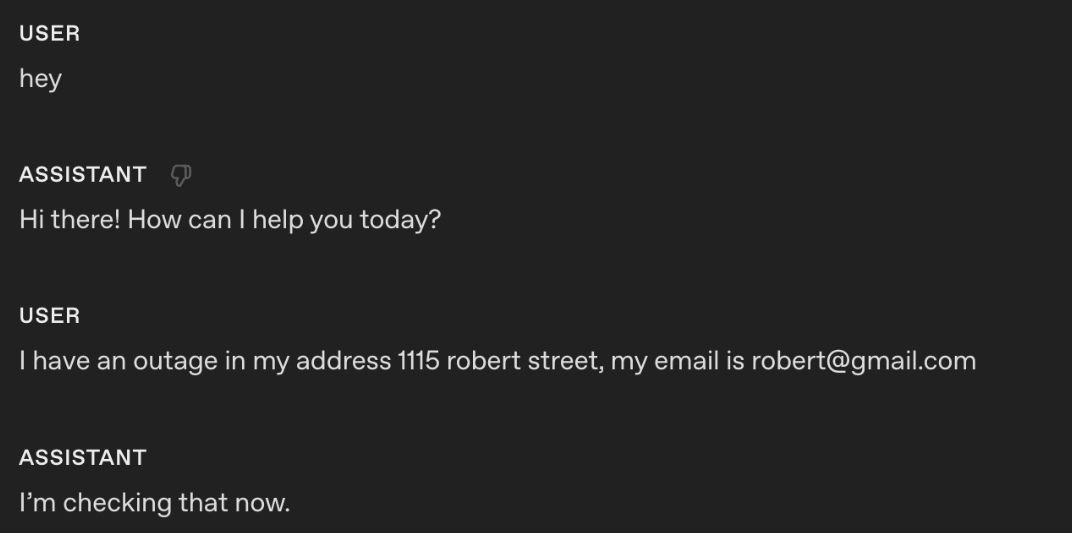
Using the instruction, the model outputs an audio response "I'm checking that right now" at the same time as the tool call.
Tool Call Preambles + Sample Phrases
If you want to control more closely what type of phrases the model outputs at the same time it calls a tool, you can add sample phrases in the tool spec description.
Example
tools = [
    {
        "name": "lookup_account",
        "description": """Retrieve a customer account using either an email or phone number to enable verification and account-specific actions.

Preamble sample phrases:
- For security, I’ll pull up your account using the email on file.
- Let me look up your account by {email} now.
- I’m fetching the account linked to {phone} to verify access.
- One moment—I’m opening your account details.""",
        "parameters": {
            "type": "object",
            "properties": {
                "email": {"type": "string"},
                "phone": {"type": "string"},
            },
            "additionalProperties": False,
        },
    },
    {
        "name": "check_outage",
        "description": """Check for network outages affecting a given service address and return status and ETA if applicable.

Preamble sample phrases:
- I’ll check for any outages at {service_address} right now.
- Let me look up network status for your area.
- I’m checking whether there’s an active outage impacting your address.
- One sec—verifying service status and any posted ETA.""",
        "parameters": {
            "type": "object",
            "properties": {
                "service_address": {"type": "string"},
            },
            "required": ["service_address"],
            "additionalProperties": False,
        },
    },
]
Tool Calls Without Confirmation
Sometimes the model might ask for confirmation before a tool call. For some use cases, this can lead to poor experience for the end user since the model is not being proactive.
- When to use: The agent asks for permission before obvious tool calls.
- What it does: Removes unnecessary confirmation loops.
Example
# Tools
- When calling a tool, do not ask for any user confirmation. Be proactive
These are the responses after applying the instruction using gpt-realtime-1.5.
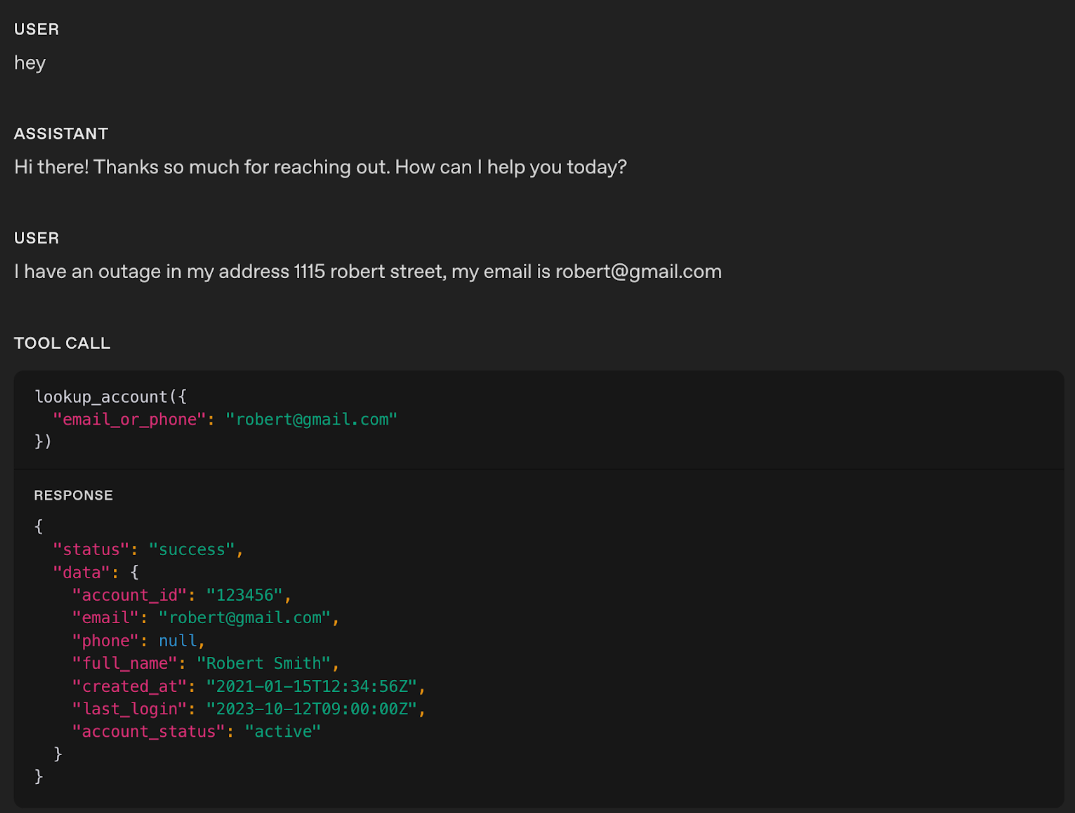
In the example, you notice that the realtime model did not produce any response audio; it directly called the respective tool.
Tip: If you notice the model is jumping too quickly to call a tool, try softening the wording. For example, swapping out stronger terms like “proactive” with something gentler can help guide the model to take a calmer, less eager approach.
Tool Call Performance
As use cases grow more complex and the number of available tools increases, it becomes critical to explicitly guide the model on when to use each tool and just as importantly, when not to. Clear usage rules not only improve tool call accuracy but also help the model choose the right tool at the right time.
- When to use: Model is struggling with tool call performance and needs the instructions to be explicit to reduce misuse.
- What it does: Add instructions on when to “use/avoid” each tool. You can also add instructions on sequences of tool calls (after Tool call A, you can call Tool call B or C)
Example
# Tools
- When you call any tools, you must output at the same time a response letting the user know that you are calling the tool.

## lookup_account(email_or_phone)
Use when: verifying identity or viewing plan/outage flags.
Do NOT use when: the user is clearly anonymous and only asks general questions.

## check_outage(address)
Use when: user reports connectivity issues or slow speeds.
Do NOT use when: question is billing-only.

## refund_credit(account_id, minutes)
Use when: confirmed outage > 240 minutes in the past 7 days.
Do NOT use when: outage is unconfirmed; route to Diagnose → check_outage first.

## schedule_technician(account_id, window)
Use when: repeated failures after reboot and outage status = false.
Do NOT use when: outage status = true (send status + ETA instead).

## escalate_to_human(account_id, reason)
Use when: user seems very frustrated, abuse/harassment, repeated failures, billing disputes >$50, or user requests escalation.
Tip: If a tool call can fail unpredictably, add clear failure-handling instructions so the model responds gracefully.
Tool Level Behavior
You can fine-tune how the model behaves for specific tools instead of applying one global rule. For example, you may want READ tools to be called proactively, while WRITE tools require explicit confirmation.
- When to use: Global instructions for proactiveness, confirmation, or preambles don’t suit every tool.
- What it does: Adds per-tool behavior rules that define whether the model should call the tool immediately, confirm first, or speak a preamble before the call.
Example
# TOOLS
- For the tools marked PROACTIVE: do not ask for confirmation from the user and do not output a preamble.
- For the tools marked as CONFIRMATION FIRST: always ask for confirmation to the user.
- For the tools marked as PREAMBLES: Before any tool call, say one short line like “I’m checking that now.” Then call the tool immediately.

## lookup_account(email_or_phone) — PROACTIVE
Use when: verifying identity or accessing billing.
Do NOT use when: caller refuses to identify after second request.

## check_outage(address) — PREAMBLES
Use when: caller reports failed connection or speed lower than 10 Mbps.
Do NOT use when: purely billing OR when internet speed is above 10 Mbps.
If either condition applies, inform the customer you cannot assist and hang up.

## refund_credit(account_id, minutes) — CONFIRMATION FIRST
Use when: confirmed outage > 240 minutes in the past 7 days (credit 60 minutes).
Do NOT use when: outage unconfirmed.
Confirmation phrase: “I can issue a credit for this outage—would you like me to go ahead?”

## schedule_technician(account_id, window) — CONFIRMATION FIRST
Use when: reboot + line checks fail AND outage=false.
Windows: “10am–12pm ET” or “2pm–4pm ET”.
Confirmation phrase: “I can schedule a technician to visit—should I book that for you?”

## escalate_to_human(account_id, reason) — PREAMBLES
Use when: harassment, threats, self-harm, repeated failure, billing disputes > $50, caller is frustrated, or caller requests escalation.
Preamble: “Let me connect you to a senior agent who can assist further.”
Tool Output Formatting
Some tool outputs, especially long strings that must be repeated verbatim, can be out-of-distribution for the model. During training, tool outputs commonly look like JSON objects with named fields. If your tool returns a raw string and separately asks the model to “repeat exactly,” the model may be more prone to paraphrasing, truncation, or blending in its own preamble.
A practical fix is to make the tool output look like a normal tool result and make the verbatim requirement machine-explicit.
When to use: A tool returns long or complex structured content (multi-sentence instructions, handoff packets, IDs/links, policy summaries, multi-step procedures, etc.) and you observe truncation, paraphrasing, dropped fields, reordering, or the model blending in its own preamble/commentary.
What it does: Wraps the tool output in a small, explicit JSON envelope (e.g.,
response_textplus flags likerequire_repeat_verbatim,format, orcontent_type) so the response looks more in-distribution and the expected realization behavior is machine-clear.How to adapt: Keep the schema minimal and stable. Clearly document the expected tool output shape in both your Tools instructions and next to the tool definition (e.g., “If
require_repeat_verbatimis true, output exactlyresponse_textand nothing else,” or “Renderresponse_textas-is; do not add, omit, or reorder fields from the tool output.”).
Examples
Example: raw string (more error-prone)
Tool returns:
I just sent you an email with the verification link. Please open it and click “Confirm”.Model sometimes says:
“I’ve emailed you a verification link…” (paraphrase)
Drops the last sentence (truncation)
Adds extra commentary (“Can I help with anything else?”)
Example: wrapped JSON (more in-distribution, more reliable)
Tool returns:
{
  "response_text": "I just sent you an email with the verification link. Please open it and click “Confirm”.",
  "require_repeat_verbatim": true
}
Because this looks like a typical tool result (JSON object), the model generally has an easier time:
recognizing what the “authoritative” content is (response_text)
understanding the realization constraint (require_repeat_verbatim)
reproducing the tool output cleanly, without truncation or extra commentary
Rephrase Supervisor Tool (Responder-Thinker Architecture)
In many voice setups, the realtime model acts as the responder (speaks to the user) while a stronger text model acts as the thinker (does planning, policy lookups, SOP completion). Text replies are not automatically good for speech, so the responder must rephrase the thinker’s text into an audio-friendly response before generating audio.
- When to use: When the responder’s spoken output sounds robotic, too long, or awkward after receiving a thinker response.
- What it does: Adds clear instructions that guide the responder to rephrase the thinker’s text into a short, natural, speech-first reply.
- How to adapt: Tweak phrasing style, openers, and brevity limits to match your use case expectations.
Example
# Tools
## Supervisor Tool
Name: getNextResponseFromSupervisor(relevantContextFromLastUserMessage: string)

When to call:
- Any request outside the allow list.
- Any factual, policy, account, or process question.
- Any action that might require internal lookups or system changes.

When not to call:
- Simple greetings and basic chitchat.
- Requests to repeat or clarify.
- Collecting parameters for later Supervisor use:
  - phone_number for account help (getUserAccountInfo)
  - zip_code for store lookup (findNearestStore)
  - topic or keyword for policy lookup (lookupPolicyDocument)

Usage rules and preamble:
1) Say a neutral filler phrase to the user, then immediately call the tool. Approved fillers: “One moment.”, “Let me check.”, “Just a second.”, “Give me a moment.”, “Let me see.”, “Let me look into that.” Fillers must not imply success or failure.
2) Do not mention the “Supervisor” when responding with filler phrase.
3) relevantContextFromLastUserMessage is a one-line summary of the latest user message; use an empty string if nothing salient.
4) After the tool returns, apply Rephrase Supervisor and send your reply.

### Rephrase Supervisor
- Start with a brief conversational opener using active language, then flow into the answer (for example: “Thanks for waiting—”, “Just finished checking that.”, “I’ve got that pulled up now.”).
- Keep it short: no more than 2 sentences.
- Use this template: opener + one-sentence gist + up to 3 key details + a quick confirmation or choice (for example: “Does that match what you expected?”, “Want me to review options?”).
- Read numbers for speech: money naturally (“$45.20” → “forty-five dollars and twenty cents”), phone numbers 3-3-4, addresses with individual digits, dates/times plainly (“August twelfth”, “three-thirty p.m.”).
Here’s an example without the rephrasing instruction:
Assistant: Your current credit card balance is positive at 32,323,232 AUD.
Here’s the same example with the rephrasing instruction:
Assistant: Just finished checking that—your credit card balance is thirty-two million three hundred twenty-three thousand two hundred thirty-two dollars in your favor. Your last payment was processed on August first. Does that match what you expected?
Common Tools
gpt-realtime-1.5 has been trained to effectively use the following common tools. If your use case needs similar behavior, keep the names, signatures, and descriptions close to these to maximize reliability and to be more in-distribution.
Below are some of the important common tools that the model has been trained on:
Example
# answer(question: string)
Description: Call this when the customer asks a question that you don't have an answer to or asks to perform an action.

# escalate_to_human()
Description: Call this when a customer asks for escalation, or to talk to someone else, or expresses dissatisfaction with the call.

# finish_session()
Description: Call this when a customer says they're done with the session or doesn't want to continue. If it's ambiguous, confirm with the customer before calling.