Trigger a Workspace Agent from the API
For the complete documentation index, see llms.txt. Markdown versions of documentation pages are available by appending
.mdto the page URL.
Workspace Agents let teams save repeatable work in ChatGPT: instructions, connected context, app actions, approvals, and output format. API triggers let another system start that saved workflow when work begins outside ChatGPT.
In this notebook, you send one source event, confirm the trigger was accepted, and verify the result in the agent's destination. The API starts the run. The instructions, app permissions, and approval settings control what happens next.
API-triggered runs are asynchronous. The endpoint queues the run, but it does not return the completed agent response.
What you will build
By the end, you will have a saved Workspace Agent, an API channel with an agtch_... trigger ID, and a Python trigger call that can run live against your agent.
Prerequisites
Before running the live trigger cell, you need:
| You need | Use this doc |
|---|---|
| Workspace Agents enabled in a supported ChatGPT workspace, plus permission to create and share agents | ChatGPT Workspace Agents guide |
| A saved Workspace Agent with one destination it can write to | Create and manage Workspace Agents |
An API channel on that agent and its agtch_... trigger ID | Trigger workspace agent runs |
| A Workspace Agent access token with the Workspace Agents scope | Authenticate with Workspace Agent access tokens |
A notebook or backend environment that can send HTTPS POST requests | This notebook uses Python's standard library. No OpenAI Platform SDK is required. |
One async detail matters: the HTTP request returns before the agent finishes. The destination can be any connected app or surface the agent can write to, such as a channel, document, email, or ticket.
Check the Help Center for current plan and regional availability.
Architecture
The source system decides when work starts. The Workspace Agent decides how the saved workflow runs using its instructions, context, apps, and approvals.

The backend starts the run. The agent follows the saved workflow and writes the result.
1. Write the agent instructions
The API trigger only starts the run. The Workspace Agent instructions tell the agent what to do next.
| Instructions decide | App setup decides |
|---|---|
| Which destination to use | Whether the app can access that destination |
| What output to write | Whether the write action is available |
| Whether to act immediately or ask first | Whether approval is required before writing |
For this demo, the instructions should be narrow: read the source event, write one update to the destination, and include the request ID so you can verify it.
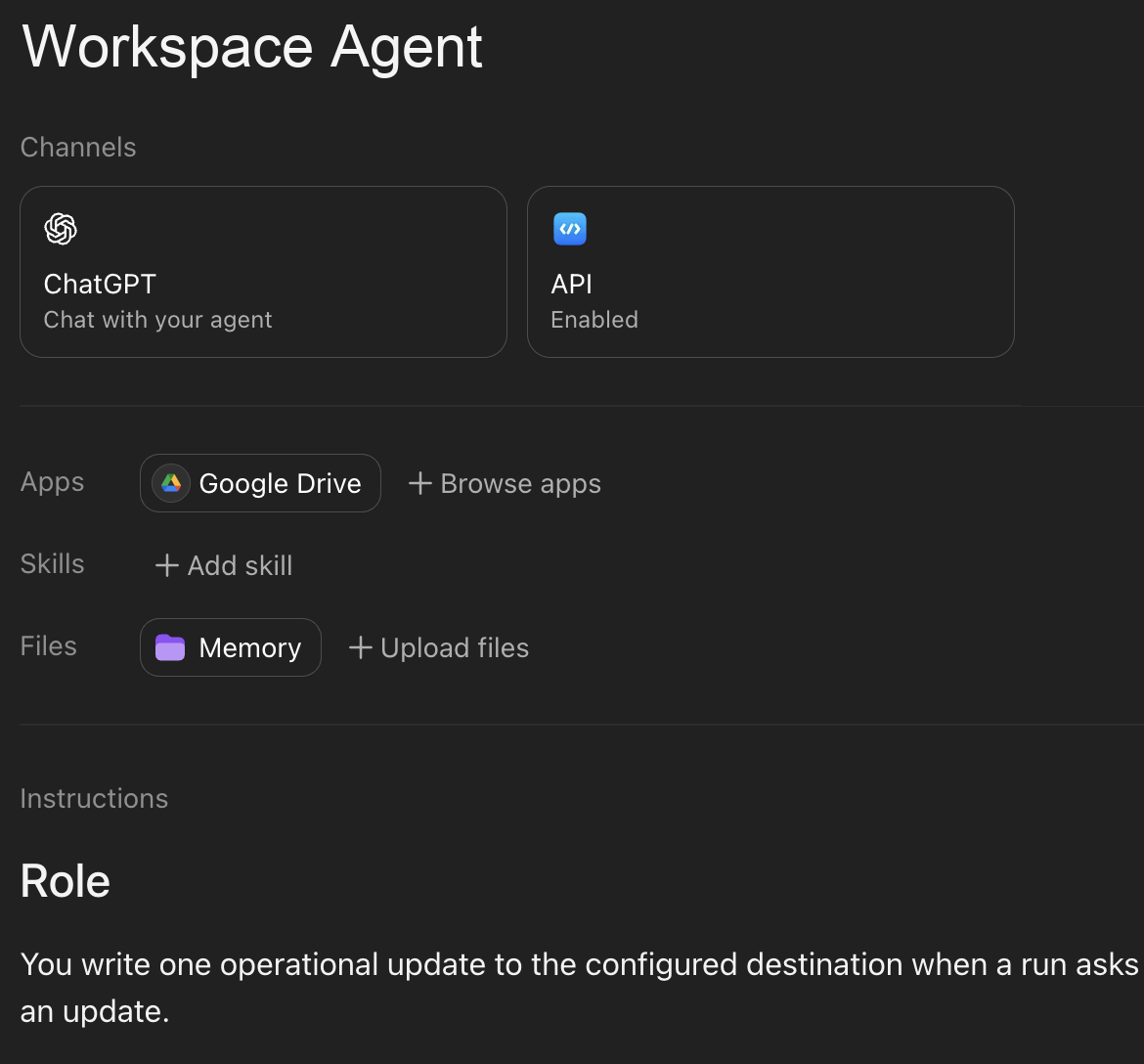
Use the instructions section to make the destination, write behavior, and approval expectations clear.
agent_builder_prompt = """
Create a Workspace Agent that writes API-triggered updates to the configured destination.

When the agent receives an API-triggered run:
1. Find the request ID, source system, output destination, and update text in the input.
2. Write one short update to that destination if the connected app allows it.
3. Start the update with: Workspace Agent API demo received: <Request ID>
4. Include the source system, submitted timestamp, and update text if present.
5. After the write succeeds, stop.

Use the exact destination named in the input or saved in these instructions.
Do not assume the API-triggered run has a current chat, channel, thread, or document context.
If write approval is required, request approval. If the destination is unavailable, say that the output destination could not be reached.
""".strip()

print(agent_builder_prompt)
Test the exact behavior in Preview before adding the API trigger. Paste a sample message with a request ID, destination, and update text. If Preview cannot write to the destination, the API trigger will not either.
2. Connect one output destination
Choose one low-risk destination the agent can write to: a channel, document, email, ticket, or another connected app. Configure the app connection and decide whether writes should require approval before testing the API trigger.
Auto-approved writes are useful for low-risk demo destinations. Riskier writes should stay approval-gated.
| Auth model | Use it when | Watch for |
|---|---|---|
| End-user account | Each person running the agent should use their own app permissions | API-triggered workflows may need the caller to have the right app access |
| Agent-owned account | The workflow needs a consistent shared connection, such as a team channel, shared document, or shared inbox | Use a service account when possible. Avoid personal accounts unless you understand the risk |
api_output_instructions = """
When triggered by API, write one short update to the configured destination.
Always include the request ID from the trigger input.

Start the update with: Workspace Agent API demo received: <Request ID>
Include the source system, submitted timestamp, and update text if present.
Use the exact destination named in the input or saved in these instructions.
Do not assume the API-triggered run has a current chat, channel, thread, or document context.
If writes are auto-approved for this destination, write immediately. If approval is required, request approval.
After the write succeeds, stop.
""".strip()

print(api_output_instructions)
3. Add an API channel
Open the agent in the Workspace Agent builder. Add an API channel, save the agent, copy the trigger ID, and confirm the ID starts with agtch_.
Share the agent with the user whose access token will call the API. The trigger ID goes in the API path. It is different from the agent name.
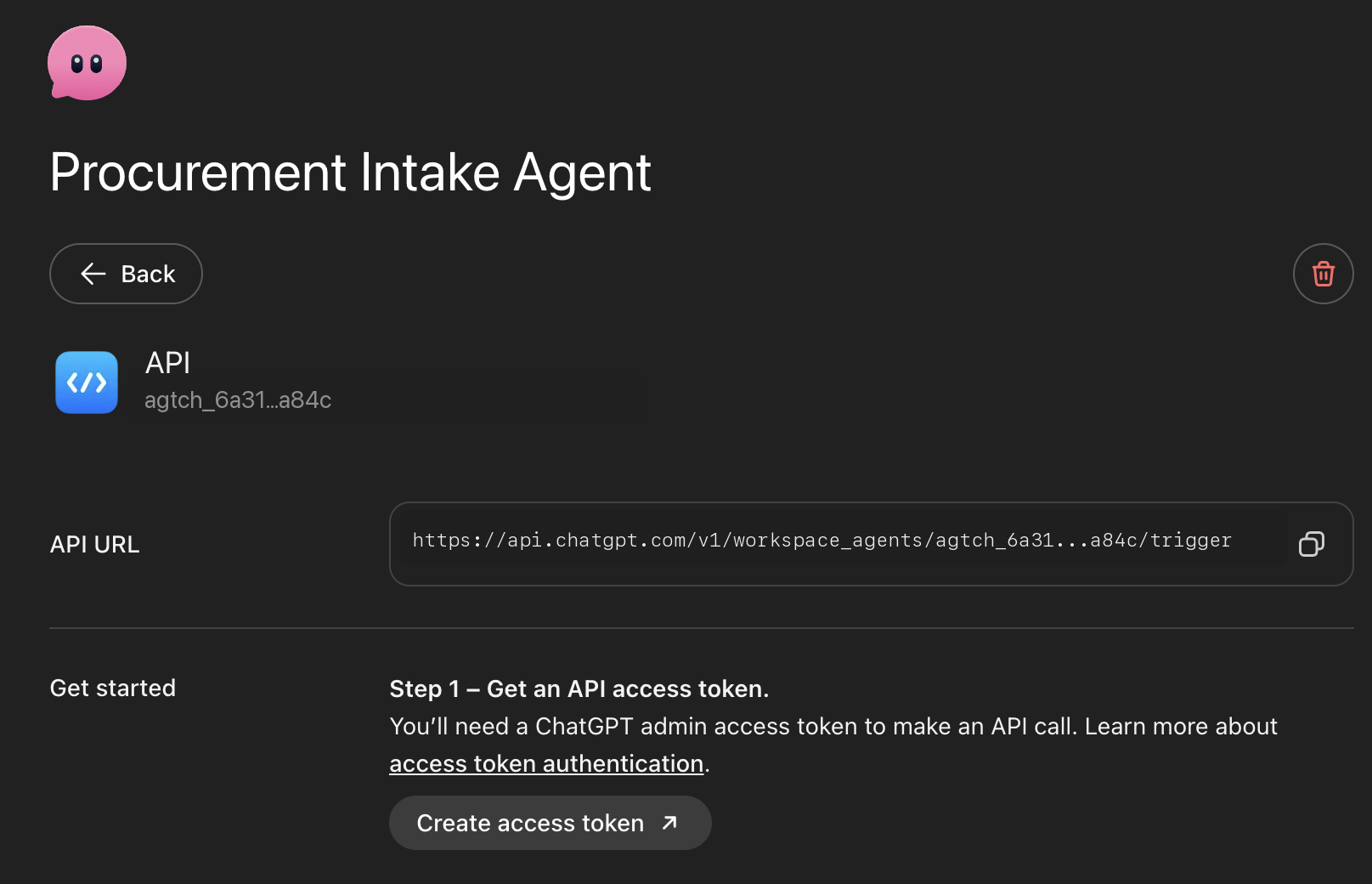
Use this API channel ID in the trigger endpoint.
4. Configure the live call
You need two values:
| Value | Where it comes from |
|---|---|
| API trigger ID | The agent's API channel. It starts with agtch_.... |
| Workspace Agent access token | ChatGPT Admin > Access tokens, with the Workspace Agents scope. |
Use a Workspace Agent access token for https://api.chatgpt.com, not an OpenAI Platform API key. The token owner must be able to run the shared agent, or the API returns 403 Forbidden.
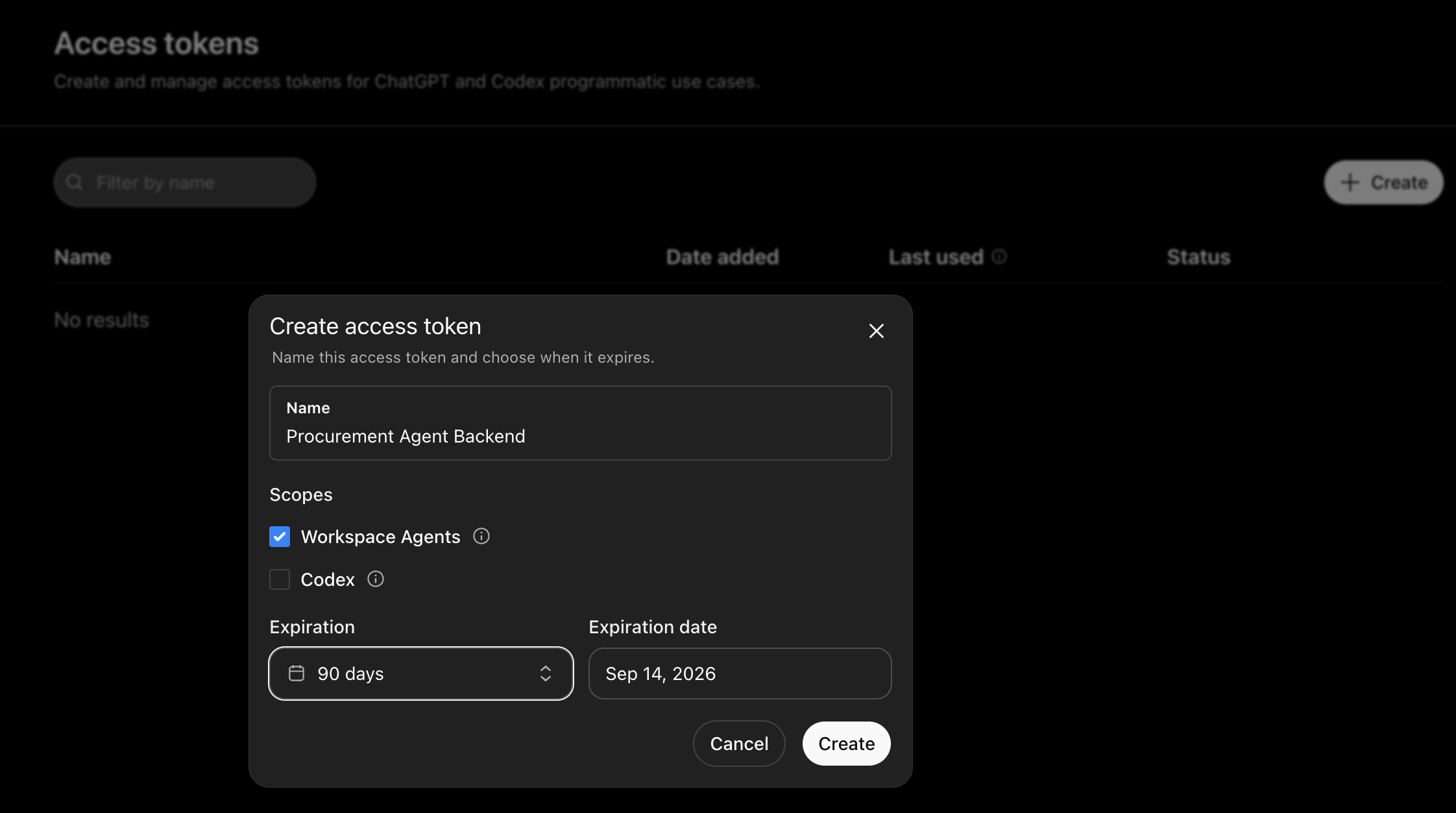
Store the token as a secret. Do not paste it into notebook code.
For a live run, export the values before opening the notebook:
export WORKSPACE_AGENT_TRIGGER_ID="agtch_..."