Build a status line step by step
This walkthrough shows what's happening under the hood by manually creating a status line that displays the current model, working directory, and context window usage percentage.
<Note>Running /statusline with a description of what you want configures all of this for you automatically.</Note>
These examples use Bash scripts, which work on macOS and Linux. On Windows, see Windows configuration for PowerShell and Git Bash examples.
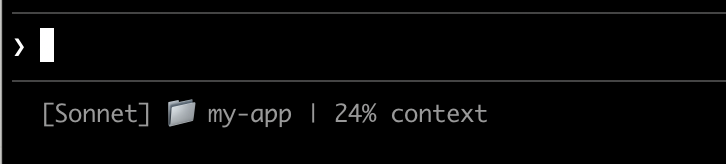
Claude Code sends JSON data to your script via stdin. This script uses [`jq`](https://jqlang.org/), a command-line JSON parser you may need to install, to extract the model name, directory, and context percentage, then prints a formatted line.

Save this to `~/.claude/statusline.sh` (where `~` is your home directory, such as `/Users/username` on macOS or `/home/username` on Linux):

```bash theme=\{null\}
#!/bin/bash
# Read JSON data that Claude Code sends to stdin
input=$(cat)

# Extract fields using jq
MODEL=$(echo "$input" | jq -r '.model.display_name')
DIR=$(echo "$input" | jq -r '.workspace.current_dir')
# The "// 0" provides a fallback if the field is null
PCT=$(echo "$input" | jq -r '.context_window.used_percentage // 0' | cut -d. -f1)

# Output the status line - ${DIR##*/\} extracts just the folder name
echo "[$MODEL] 📁 ${DIR##*/\} | $\{PCT\}% context"
```

Mark the script as executable so your shell can run it:

```bash theme=\{null\}
chmod +x ~/.claude/statusline.sh
```

Tell Claude Code to run your script as the status line. Add this configuration to `~/.claude/settings.json`, which sets `type` to `"command"` (meaning "run this shell command") and points `command` to your script:

```json theme=\{null\}
\{
  "statusLine": \{
    "type": "command",
    "command": "~/.claude/statusline.sh"
  \}
\}
```

Your status line appears at the bottom of the interface. Claude Code reloads settings automatically and runs your script as soon as you save the file.