Using MCP with Local and Open Source Models
In this section, we'll connect MCP with local and open-source models using Continue, a tool for building AI coding assistants that works with local tools like Ollama.
本节我们用 Continue 把 MCP 与本地开源模型连接起来。Continue 是一个构建 AI 编程助手的工具,可以配合 Ollama 这类本地工具使用。
Setup Continue
You can install Continue from the VS Code marketplace.
你可以在 VS Code 应用市场安装 Continue。
TIP
Continue also has an extension for JetBrains.
Continue 也有面向 JetBrains 的插件。
VS Code extension
- Click
Installon the Continue extension page in the Visual Studio Marketplace - This will open the Continue extension page in VS Code, where you will need to click
Installagain - The Continue logo will appear on the left sidebar. For a better experience, move Continue to the right sidebar
1. 在 Visual Studio Marketplace 的 Continue 扩展页面点击 Install;2. 这会打开 VS Code 中的 Continue 扩展页,你需要再点一次 Install;3. 左侧边栏会出现 Continue 的图标。为了更好的使用体验,建议把 Continue 移到右侧边栏。
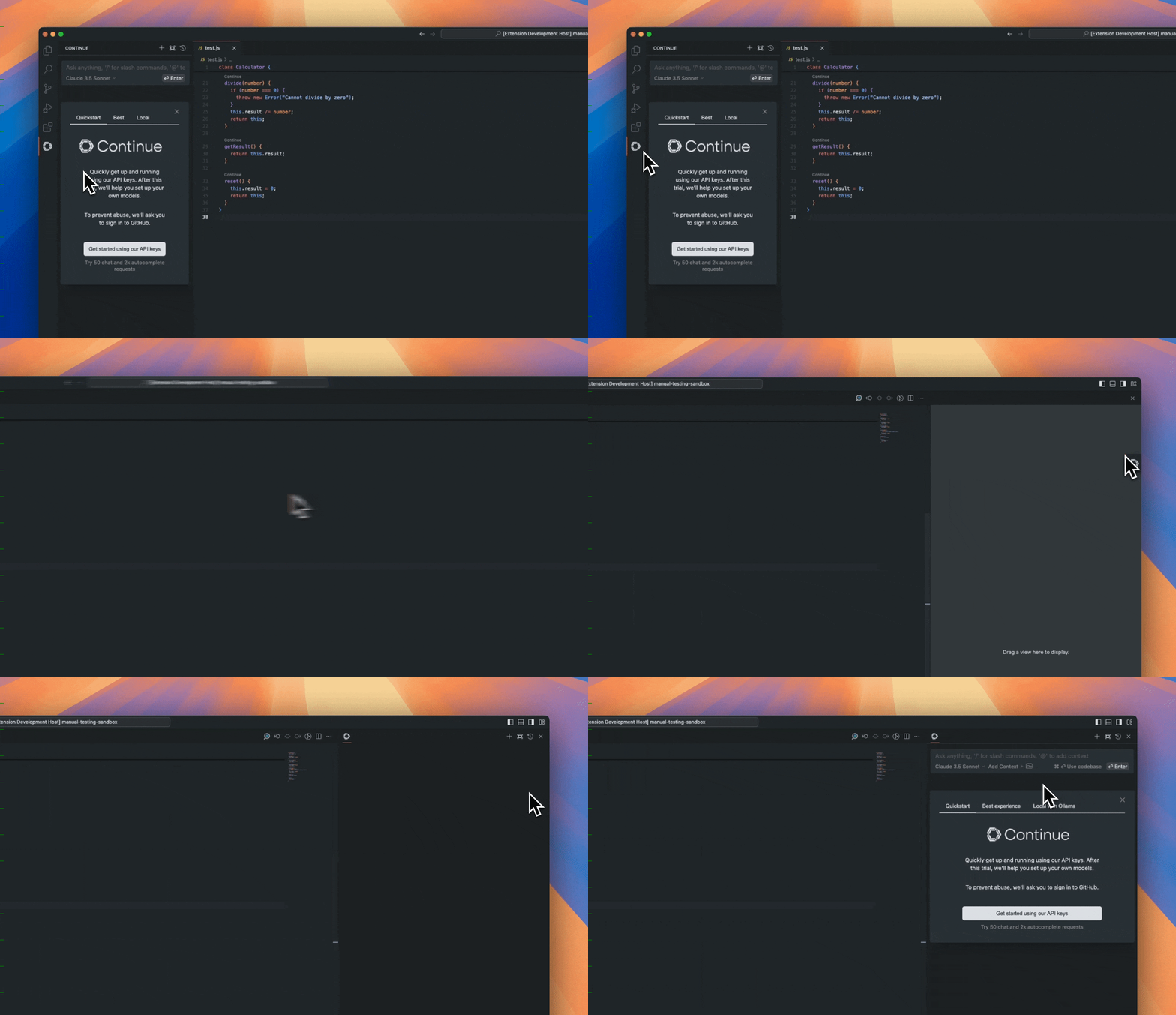
With Continue configured, we'll move on to setting up Ollama to pull local models.
Continue 配置好之后,我们接着设置 Ollama,用它拉取本地模型。
Local Models
There are many ways to run local models that are compatible with Continue. Three popular options are Ollama, Llama.cpp, and LM Studio. Ollama is an open-source tool that allows users to easily run large language models (LLMs) locally. Llama.cpp is a high-performance C++ library for running LLMs that also includes an OpenAI-compatible server. LM Studio provides a graphical interface for running local models.
有很多方式可以运行与 Continue 兼容的本地模型,三个常见选择是 Ollama、Llama.cpp 和 LM Studio。Ollama 是一个开源工具,让用户能轻松在本地运行大语言模型(LLM)。Llama.cpp 是一个用于运行 LLM 的高性能 C++ 库,同时包含一个兼容 OpenAI 的服务端。LM Studio 则提供了运行本地模型的图形界面。
You can access local models from the Hugging Face Hub and get commands and quick links for all major local inference apps.
你可以从 Hugging Face Hub 获取本地模型,并拿到各大本地推理应用的命令和快捷链接。

Llama.cpp provides llama-server, a lightweight, OpenAI API compatible, HTTP server for serving LLMs. You can either build it from source by following the instructions in the Llama.cpp repository, or use a pre-built binary if available for your system. Check out the Llama.cpp documentation for more information.
Llama.cpp 提供 llama-server,这是一个轻量、兼容 OpenAI API、用于提供 LLM 服务的 HTTP 服务端。你可以按照 Llama.cpp 仓库(https://github.com/ggml-org/llama.cpp)中的说明从源码构建,也可以使用系统已有的预编译版本。更多信息请查阅 Llama.cpp 文档(https://github.com/ggerganov/llama.cpp)。
Once you have llama-server, you can run a model from Hugging Face with a command like this:
有了 llama-server 之后,就可以用类似这样的命令运行来自 Hugging Face 的模型:
llama-server -hf unsloth/Devstral-Small-2505-GGUF:Q4_K_MLM Studio is an application for Mac, Windows, and Linux that makes it easy to run open-source models locally with a graphical interface. To get started:
LM Studio 是一款支持 Mac、Windows 和 Linux 的应用,通过图形界面让本地运行开源模型变得容易。上手方式:
- Click here to open the model in LM Studio.
- Once the model is downloaded, go to the "Local Server" tab and click "Start Server". To use Ollama, you can install it and download the model you want to run with the
ollama runcommand.
1. 点击这里在 LM Studio 中打开该模型。2. 模型下载完成后,进入「Local Server」标签页并点击「Start Server」。若想使用 Ollama,可以先安装它,再用 ollama run 命令下载你想运行的模型。
For example, you can download and run the Devstral-Small model with:
例如,你可以这样下载并运行 Devstral-Small 模型(https://huggingface.co/unsloth/Devstral-Small-2505-GGUF?local-app=ollama):
ollama run hf.co/unsloth/Devstral-Small-2505-GGUF:Q4_K_MThis model is around 14GB in size, so you need to ensure that the machine you are running it on has enough free RAM. Otherwise you might see an error like: model requires more system memory than is available.
这个模型大约 14GB,因此要确保运行它的机器有足够的可用内存,否则可能看到这样的报错:模型需要的系统内存超过可用内存。
TIP
Continue supports various local model providers. Besides Ollama, Llama.cpp, and LM Studio you can also use other providers. For a complete list of supported providers and detailed configuration options, please refer to the Continue documentation.
Continue 支持多种本地模型提供方。除 Ollama、Llama.cpp 与 LM Studio 之外,还可以使用其他提供方。完整的支持列表与详细配置说明请参阅 Continue 文档。
It is important that we use models that have tool calling as a built-in feature, i.e. Codestral Qwen and Llama 3.1x.
重要的是,我们要使用内置工具调用能力的模型,也就是 Codestral、Qwen 和 Llama 3.1x 这类。
- Create a folder called
.continue/modelsat the top level of your workspace - Add a file to this folder to configure your model provider. For example,
local-models.yaml. - Add the following configuration, depending on whether you are using Ollama, Llama.cpp, or LM Studio.
1. 在工作区顶层创建一个名为 .continue/models 的文件夹;2. 在该文件夹中新增一个文件来配置模型提供方,例如 local-models.yaml;3. 视你使用的是 Ollama、Llama.cpp 还是 LM Studio,填入对应的配置。
This configuration is for a llama.cpp model served with llama-server. Note that the model field should match the model you are serving.
这个配置用于由 llama-server 提供服务的 llama.cpp 模型。注意 model 字段应与你要提供服务的模型一致。
name: Llama.cpp model
version: 0.0.1
schema: v1
models:
  - provider: llama.cpp
    model: unsloth/Devstral-Small-2505-GGUF
    apiBase: http://localhost:8080
    defaultCompletionOptions:
      contextLength: 8192 # Adjust based on the model
    name: Llama.cpp Devstral-Small
    roles:
      - chat
      - edit
This configuration is for a model served via LM Studio. The model identifier should match what is loaded in LM Studio.
这个配置用于经由 LM Studio 提供服务的模型。模型标识应与 LM Studio 中加载的模型一致。
name: LM Studio Model
version: 0.0.1
schema: v1
models:
  - provider: lmstudio
    model: unsloth/Devstral-Small-2505-GGUF
    name: LM Studio Devstral-Small
    apiBase: http://localhost:1234/v1
    roles:
      - chat
      - edit
This configuration is for an Ollama model.
这个配置用于 Ollama 模型。
name: Ollama Devstral model
version: 0.0.1
schema: v1
models:
  - provider: ollama
    model: unsloth/devstral-small-2505-gguf:Q4_K_M
    defaultCompletionOptions:
      contextLength: 8192
    name: Ollama Devstral-Small
    roles:
      - chat
      - edit
By default, each model has a max context length, in this case it is 128000 tokens. This setup includes a larger use of that context window to perform multiple MCP requests and needs to be able to handle more tokens.
默认情况下每个模型都有最大上下文长度,这里是 128000 个 token。这套设置需要占用更大的上下文窗口来执行多次 MCP 请求,因此必须能处理更多 token。
How it works
The tool handshake
Tools provide a powerful way for models to interface with the external world. They are provided to the model as a JSON object with a name and an arguments schema. For example, a read_file tool with a filepath argument will give the model the ability to request the contents of a specific file.
工具为模型提供了与外部世界交互的强大途径。它们以 JSON 对象的形式提供给模型,包含名称和参数模式。例如,一个带 filepath 参数的 read_file 工具,会让模型有能力请求某个特定文件的内容。
The following handshake describes how the Agent uses tools:
下面的握手过程描述了智能体如何使用工具:
- In Agent mode, available tools are sent along with
userchat requests - The model can choose to include a tool call in its response
- The user gives permission. This step is skipped if the policy for that tool is set to
Automatic - Continue calls the tool using built-in functionality or the MCP server that offers that particular tool
- Continue sends the result back to the model
- The model responds, potentially with another tool call, and step 2 begins again
1. 在 Agent 模式下,可用工具会随 user 的对话请求一并发送;2. 模型可以选择在回复中发起一次工具调用;3. 由用户授权。若该工具的策略被设为「Automatic」,这一步会跳过;4. Continue 通过内置功能或提供该工具的 MCP 服务端来调用工具;5. Continue 把结果回传给模型;6. 模型给出回复,可能再次发起工具调用,于是回到第 2 步循环。
Continue supports multiple local model providers. You can use different models for different tasks or switch models as needed. This section focuses on local-first solutions, but Continue does work with popular providers like OpenAI, Anthropic, Microsoft/Azure, Mistral, and more. You can also run your own model provider.
Continue 支持多种本地模型提供方。你可以为不同任务使用不同模型,或按需切换模型。本节聚焦本地优先的方案,但 Continue 也确实可以与 OpenAI、Anthropic、Microsoft/Azure、Mistral 等主流提供方配合使用,你还可以运行自己的模型提供方。
Local Model Integration with MCP
Now that we have everything set up, let's add an existing MCP server. Below is a quick example of setting up a new MCP server for use in your assistant:
一切就绪后,我们来添加一个现成的 MCP 服务端。下面是在助手中配置新 MCP 服务端的快速示例:
- Create a folder called
.continue/mcpServersat the top level of your workspace - Add a file called
playwright-mcp.yamlto this folder - Write the following contents to
playwright-mcp.yamland save
1. 在工作区顶层创建一个名为 .continue/mcpServers 的文件夹;2. 在该文件夹中新增一个名为 playwright-mcp.yaml 的文件;3. 把下面的内容写入 playwright-mcp.yaml 并保存。
name: Playwright mcpServer
version: 0.0.1
schema: v1
mcpServers:
  - name: Browser search
    command: npx
    args:
      - "@playwright/mcp@latest"
Now test your MCP server by prompting the following command:
现在用下面这条提示词测试你的 MCP 服务端:
1. Using playwright, navigate to https://news.ycombinator.com.

2. Extract the titles and URLs of the top 4 posts on the homepage.

3. Create a file named hn.txt in the root directory of the project.

4. Save this list as plain text in the hn.txt file, with each line containing the title and URL separated by a hyphen.

Do not output code or instructions—just complete the task and confirm when it is done.
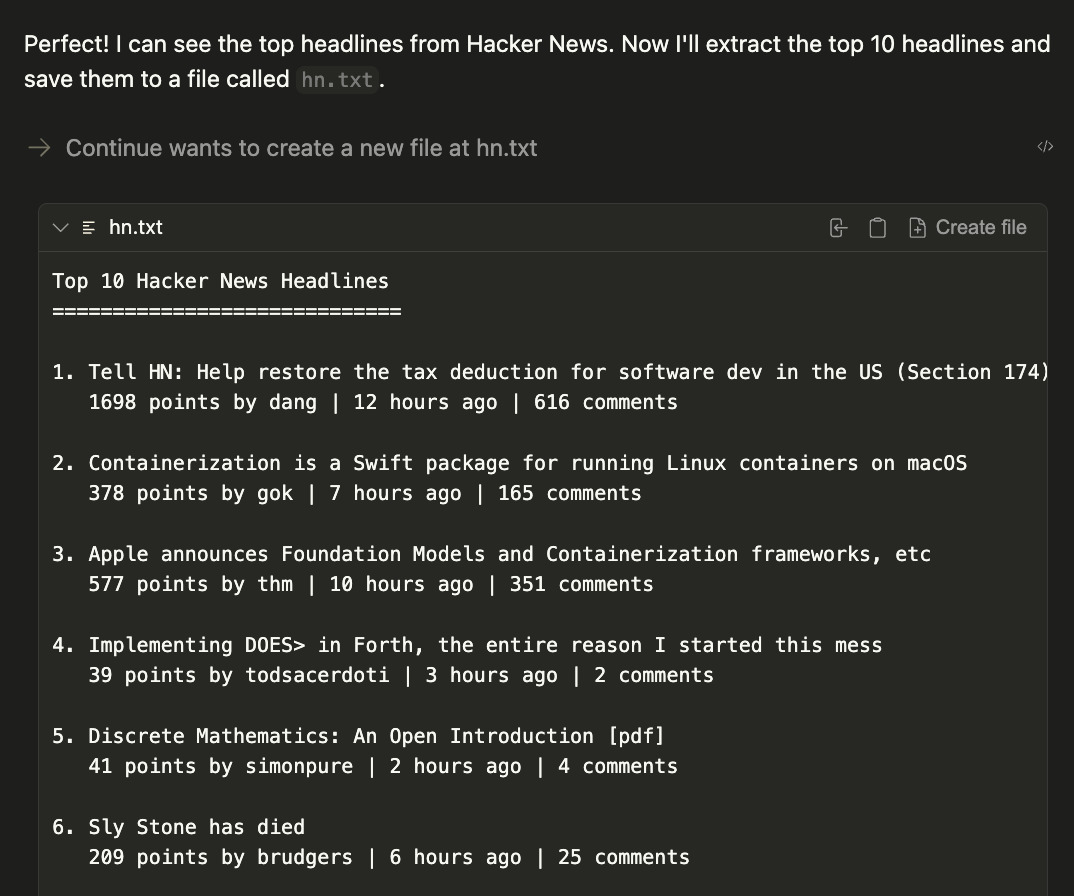
The result will be a generated file called hn.txt in the current working directory.
结果会在当前工作目录下生成一个名为 hn.txt 的文件。
Conclusion
By combining Continue with local models like Llama 3.1 and MCP servers, you've unlocked a powerful development workflow that keeps your code and data private while leveraging cutting-edge AI capabilities.
把 Continue 与 Llama 3.1 这类本地模型以及 MCP 服务端结合起来,你就打开了一套强大的开发工作流:在利用前沿 AI 能力的同时,让代码和数据保持私有。
This setup gives you the flexibility to customize your AI assistant with specialized tools, from web automation to file management, all running entirely on your local machine. Ready to take your development workflow to the next level? Start by experimenting with different MCP servers from the Continue Hub MCP explore page and discover how local AI can transform your coding experience.
这套配置让你能灵活地用专门工具定制 AI 助手,从网页自动化到文件管理,全部运行在你自己的机器上。准备好把开发工作流提升到新层次了吗?先从 Continue Hub 的 MCP 探索页(https://hub.continue.dev/explore/mcp)试用不同的 MCP 服务端开始,看看本地 AI 如何改变你的编码体验。